Per-Page Overrides Without Forking the Section
A common request: “We have a hero section. Marketing wants the same hero design on five landing pages, but each page needs its own headline, subhead, and CTA copy.”
The wrong solution is to fork the section five times. The right one is Expose Section Props: surface the prop values that should be tunable, leave the structure locked.
This recipe walks the full flow.
Do It With a Skill
curl -fsSL https://studio-documentation.contentstackapps.com/install.sh | sh
Then ask: “In the landing_hero section, expose the Heading text, Text content, and Button label/href as section props with author-friendly labels.”
The Setup
A landing_hero section that visually looks identical on every page but exposes per-instance content overrides.
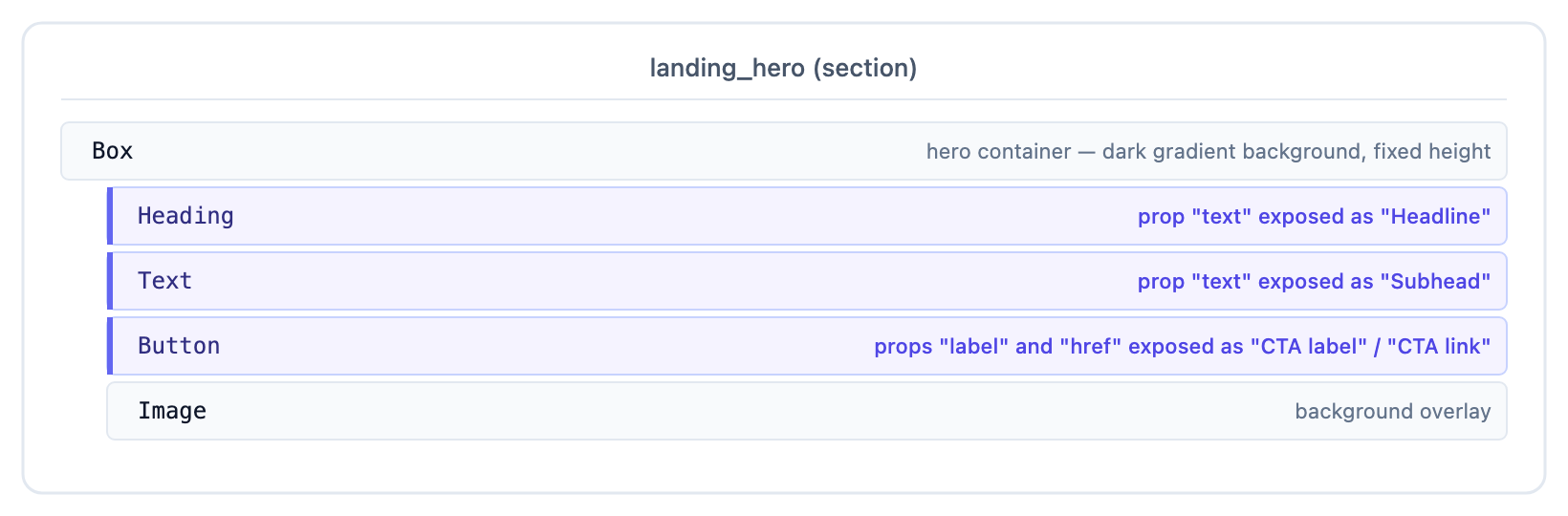
The hero is the same on every page. Only the four exposed props differ.
Step 1: Build the Section
In Compositions, open the Sections tab and select + New Section. Name it landing_hero
On the canvas, drop a Box at the root and style it (background, height, padding, alignment)
Inside the Box:
- Heading component, set text to “Your headline here”
- Text component, set to “A short subhead that explains the value”
- Button component, set label to “Get started”, href to #
- Image component for the background overlay (with placeholder src)
Save.
Studio opens the Expose Props modal because the section has component props that could be exposed.
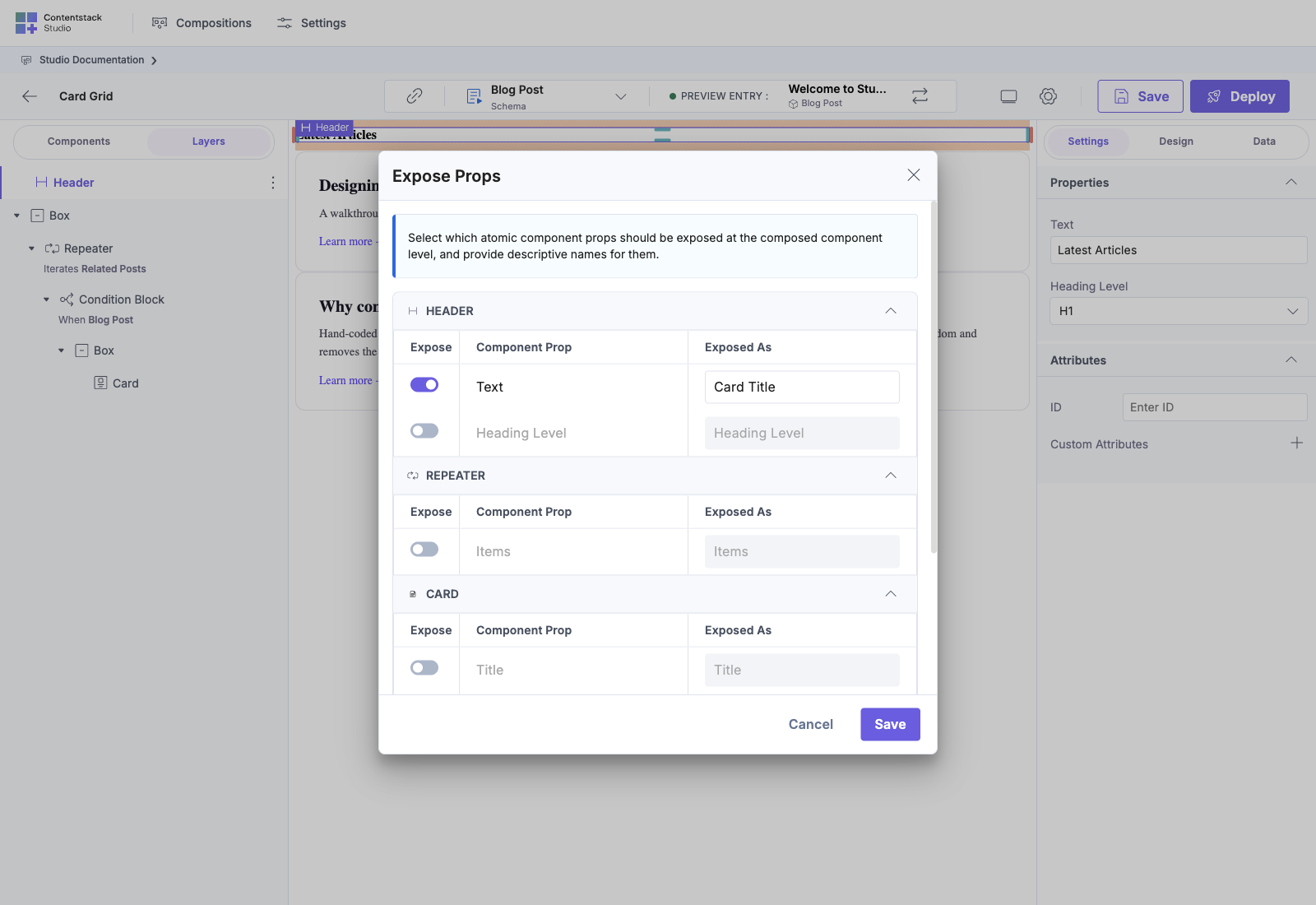
Step 2: Expose the Right Props
The modal lists every component prop it found, grouped by component type. Toggle the props you want template authors to override:
| Group | Prop | Expose? | Exposed As |
|---|---|---|---|
| HEADING | text | Yes | Headline |
| TEXT | text | Yes | Subhead |
| BUTTON | label | Yes | CTA label |
| BUTTON | href | Yes | CTA link |
| IMAGE | src | No | (leave off: every page uses the same background) |
The Exposed As column is where you rename the prop to something page composers will understand. “Headline” is more useful than “text”.
Click Save in the Expose Props modal.
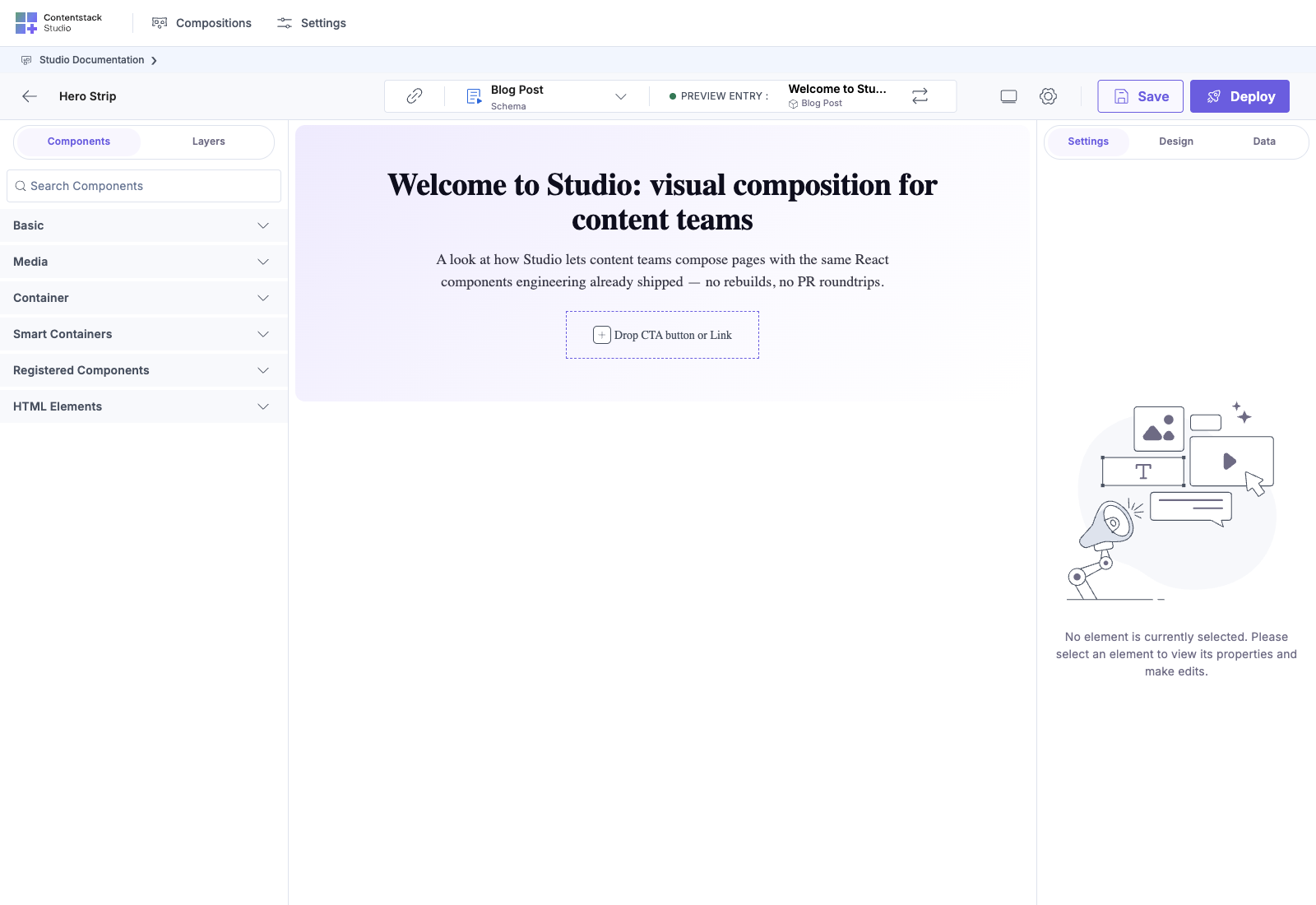
Once exposed, the section author is done. The hero section itself is now reusable across any template: visual layout fixed, four overridable knobs surfaced. Here’s the section’s own canvas (a hero with a heading, body, and an empty CTA Section Slot ready for the template to fill):
Step 3: Use the Section on the First Landing Page
- In the Templates tab, select + New Template and pick your landing-page content type
- Drop the landing_hero section onto the canvas
- Select the section instance
- In the right panel, you’ll now see the four exposed inputs:
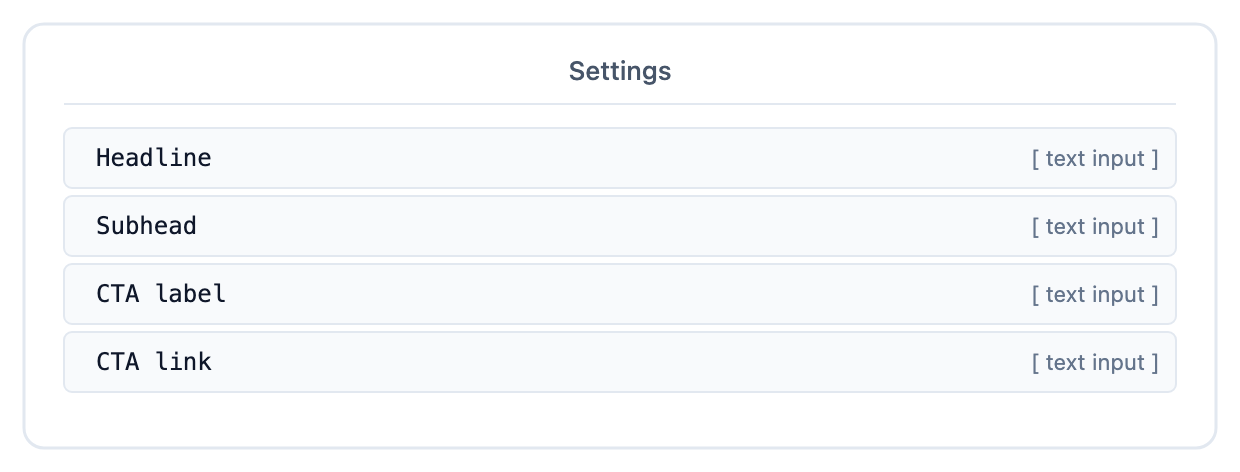
Fill in the values for this landing page:
Headline:    "Launch your campaign in days, not months"
Subhead:     "Studio gives marketing a fast lane — composed pages,
              your brand, no developer cycle."
CTA label:   "See how it works"
CTA link:    /demo
- Save the template.
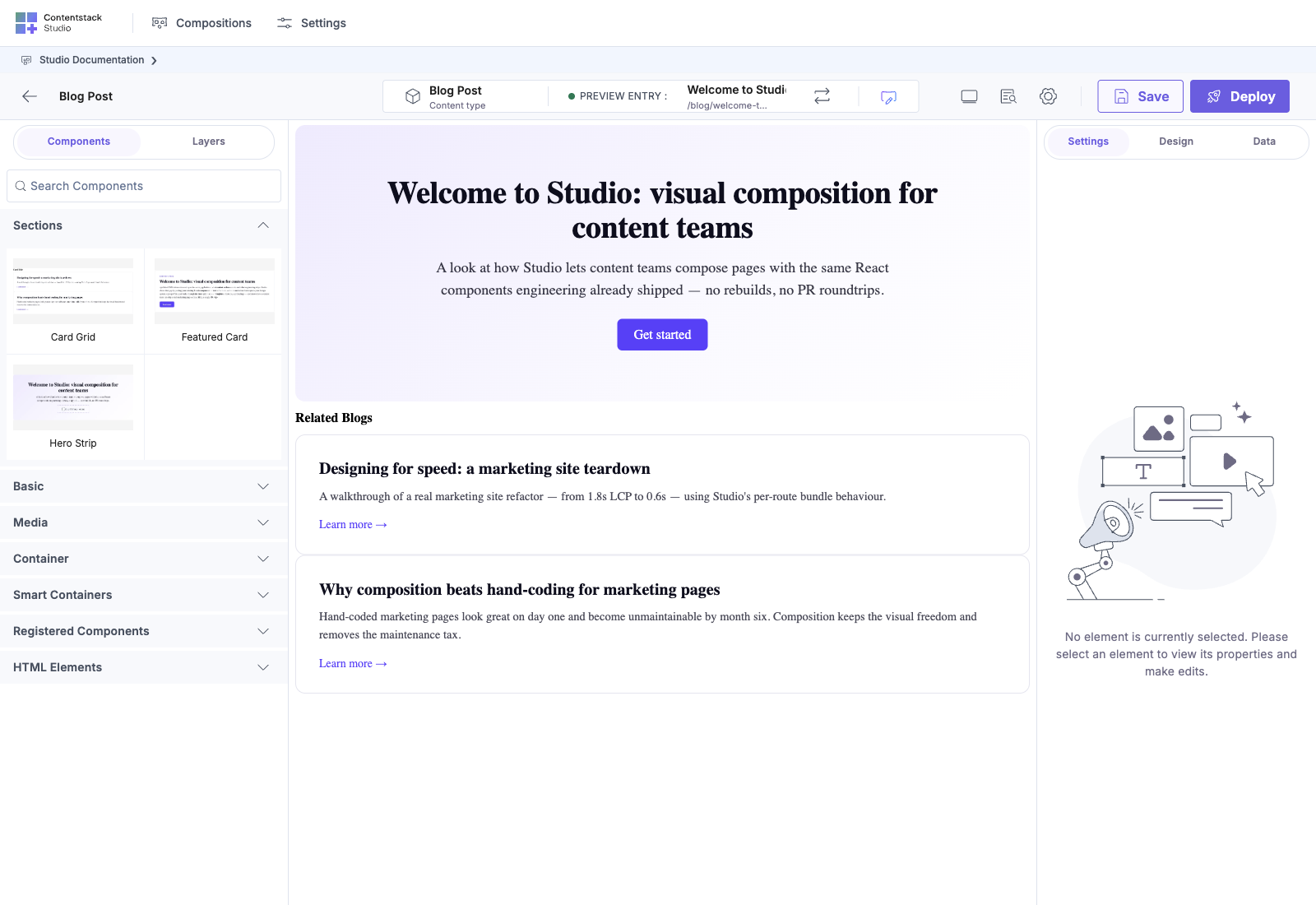
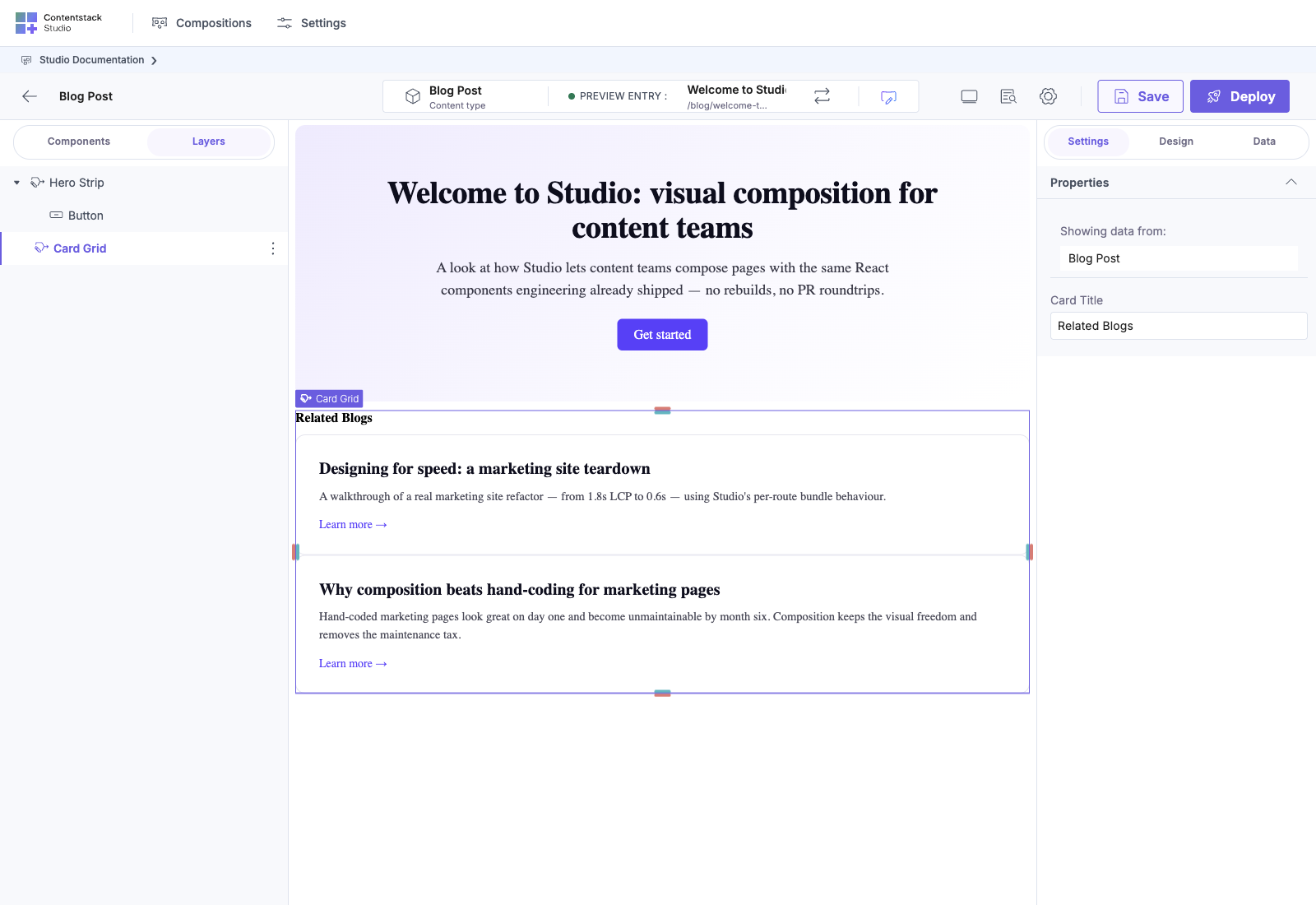
When you select the dropped section instance, the Properties panel shows the exposed inputs the section author surfaced. Here a Card Grid section dropped on a Blog Post template exposes a Card Title input pre-populated with “Related Blogs”, which this template instance overrides per-entry:
Step 4: Use the Same Section on the Second Landing Page
- Select + New Template, pick the same content type, and name it after your second campaign
- Drop landing_hero again
- Fill the exposed inputs with different content:
Headline:    "Built for global brands"
Subhead:     "Run multilingual pages from one place. Studio handles
              localisation; your team handles content."
CTA label:   "Book a demo"
CTA link:    /book-demo
Same section, same visual structure, same components, same design tokens. Completely different content. One section, many pages, zero forks.
Step 5: Verify the Per-Instance Behavior
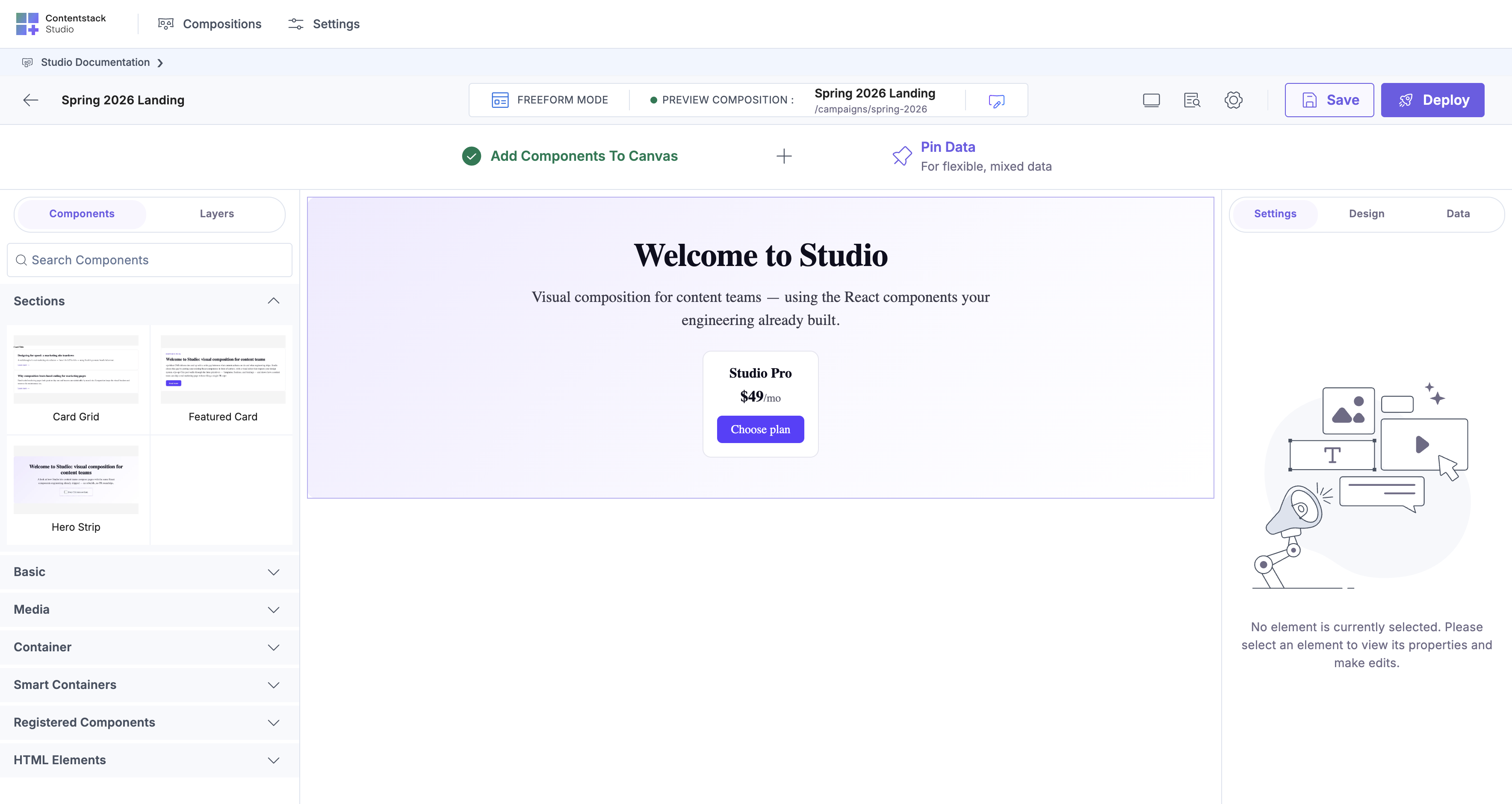
On the landing-hero section’s canvas (not the template), change the Heading component’s font size in the Design panel.
Reload both landing-page templates. Both heroes now use the new font size. The structure update propagates to every instance.
But the headline text on each landing page is preserved. That’s per-instance override, untouched by the section update.
What You Can and Can’t Do This Way
Can:
- Change a value per instance (string, number, choice, href, image URL, anything that’s a simple value)
- Have different exposed values across many instances
- Bind an exposed prop to page entry data (e.g. bind Headline to template.headline)
- Rename the exposed labels later without losing the per-instance values
Can’t (use Section Slots instead):
- Drop a different component subtree per instance: that needs a slot
- Add or remove components per instance: also a slot
- Change the structure of the hero per instance: restructure the section, not override
Can’t (use linked schemas instead):
- Change which data source the hero binds to per instance: that’s a binding decision driven by the linked schema
When to Expose, When to Slot, When to Bind
| Need | Tool |
|---|---|
| Per-page text / label / image / link | Expose Section Prop |
| Per-page component subtree | Section Slot |
| Per-page data binding (which entry / which list) | Linked schema + auto-binding |
A well-designed enterprise section uses all three:
- Linked schema for the data shape (“this section binds to a card-list shape”)
- Slots for variable regions (“template authors drop the card component into here”)
- Exposed props for small per-instance tweaks (“override the section heading on this template”)
See Also
- Expose Section Props: the concept page
- Section Slots: when you need a placeholder, not a value
- Linked schema: when binding source varies per page