Expose Section Props
Compound-component framing. A section is a compound component you built in Studio. Exposed Props + Section Slots are its two surfaces to the template author: props decide which values they can change, Section Slots decide which regions they can drop into. See Section Slots: Sections are compound components for the full framing.
Sometimes you don’t want to expose a whole region (that’s what Section Slots are for). You just want to let the template author tweak a single value inside the section per instance. The headline text. A CTA label. An image source.
Expose as Section Prop is exactly that. The section author picks individual component props and marks them as exposed, with a friendly label.
Do It With a Skill
expose-section-props exposes the individual props described here, so a template author can override one value per placement without unlocking the section.
curl -fsSL https://studio-documentation.contentstackapps.com/install.sh | sh
How It Works
The Expose Props modal opens when you Save a section that has component prop candidates. Pick which props to expose, rename them to something page composers will understand, and save.
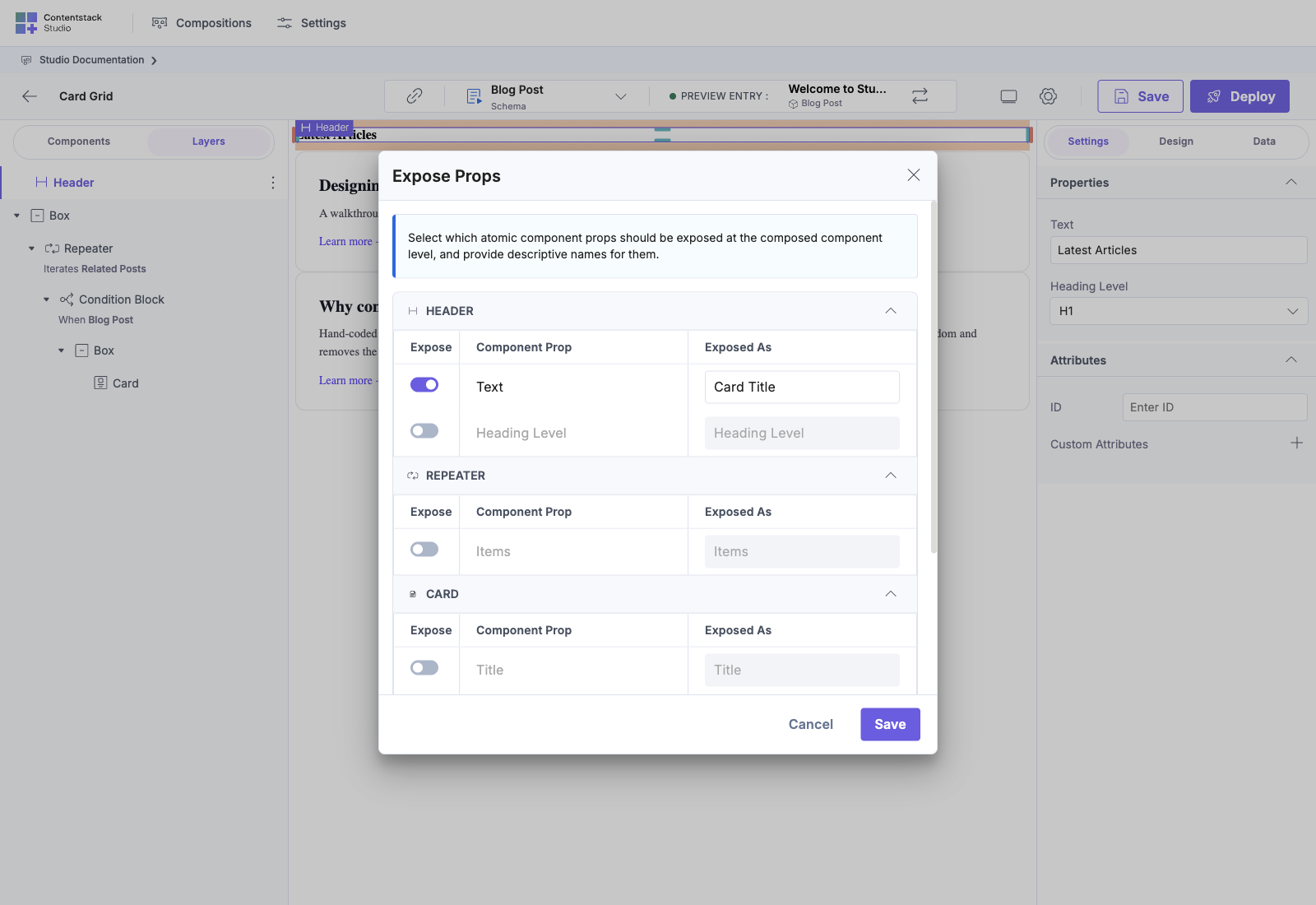
For each prop, you set three things:
| Column | What it does |
|---|---|
| Expose | Toggle on to surface this prop |
| Component Prop | The internal prop name (read-only) |
| Exposed As | The label page composers see. Rename to something clear like “Headline text” |
What Expose ON actually does
Toggling Expose ON makes that specific component prop visible (and editable) to the template author when they drop this section onto a template. Until you turn the toggle on, the prop is invisible outside the section: whatever value you set inside the section is what the template author gets, no override possible.
Two things to know:
- Exposure is per component instance, not per prop name. If your section has three Heroes, each Hero’s Headline prop is exposed independently. Turning one on doesn’t turn the others on. You decide for each which is variable per template instance.
- The prop’s type is preserved. A string prop becomes a text input in the override panel. An image prop becomes the image picker. An href prop becomes the link picker. The template author gets the right control for the prop, automatically.
When the template author drops the section, every exposed prop appears with whatever value you set inside the section as its starting value. They can keep that, type a different value, or bind to template data, exactly as if they were authoring a fresh component on the template.
In the Card Grid section’s Save flow, only the Header’s Text prop is toggled exposed (renamed to ”Card Title”). The Heading Level, the Repeater’s Items, and the Card’s Title are left internal. Templates that drop Card Grid see Card Title in their right panel. Nothing else from the section is overridable.
What Exposed As actually does
The text you type into “Exposed As” is the label the template author sees in the override panel when the section is dropped onto their template. The original prop name might mean nothing to a template author: “headline” inside a Hero is obvious to you, the section author, but in a list of exposed props on a section called “Featured Card”, “headline” is ambiguous (which heading? the card title? the section title?). Rename it to something the template author can act on: “Hero headline text”, “Card title”, “CTA label on hero”.
Two practical rules:
- Labels must be distinct. Two exposed props in the same section can’t have the same label. If you try, Studio disables the Save button until you rename one. This matters most when you have repeated components. A section with three Heroes all exposing “Headline” forces you to rename: “Top hero headline”, “Mid hero headline”, “Bottom hero headline”, so the template author can tell them apart.
- Labels affect only the override UI. Renaming “Exposed As” doesn’t break anything. Existing template instances that already override this prop keep their override values. Only the label they see changes.
What Page Composers See
When the section is dropped on a template, every exposed prop appears as a labeled input (using the Exposed As label) in the section instance’s right-panel Properties.
The input is the standard prop-binding control, the same one the section author used inside the section. That means the template author can:
- Type a literal value for this instance: overrides what the section author set
- Re-bind the prop to template data using the data picker, e.g. bind “Top hero headline” to entry.title of the template’s connected content type, or to a repeater item field, or to a query result
- Mix per-instance: drop the same section twice on the same template, bind the exposed prop to a different field in each
Internal props (the ones you left toggled OFF) keep whatever the section author set. There’s no way for the template author to touch them. That’s the whole point: you choose what’s negotiable per instance and what’s locked.
What the template author can actually do with an exposed prop
Once the section is on a template and a prop is exposed, the override panel for that prop behaves exactly like a fresh component prop on the template: same direct input, same binding chip, same data picker. So the template author can:
- Type a literal value that’s specific to this template instance
- Pick a field from the template’s connected entry so the value tracks the current entry: “Card title” on the homepage shows entry.tagline, on the blog index it shows a fixed string, on a campaign page it pulls from the campaign entry’s headline
- Pick a field from a repeater item if the section is dropped inside a Repeater on the template: each iteration’s Card now shows that iteration’s data
- Drop the same section twice with different overrides: two Featured Cards on the same page, each with its own exposed-prop choices
Whatever you bound the prop to inside the section becomes the starting value the template author sees. They keep it as-is, or they swap it. No fork, no copy: the same section composition, different values per instance.
This is the whole point of Expose Props: you author the section once with sensible defaults, then template authors override only what they need to. The internal props (the ones you left toggled OFF) stay locked at whatever you set. Template authors can’t see them and can’t change them.
When to Use Which: Expose a Prop vs Open a Slot vs Linked Schema
Canonical decision guidance lives in Section Slots § Slot vs Prop: when to use which. In one line: expose a prop when the change is a value. Open a Section Slot when it’s a whole region. Use a linked schema when the change is which list data the Section iterates. A well-designed Section usually uses all three.
Next
- Section Slots: the full Slot vs Prop decision guidance
- Binding to CMS: linked schema + auto-binding
- Recipe: overrides without forking
- Spec shape: Exposed section prop: the stored sectionExposedProps schema