The Data Tab: Additional Entry Data, Queries, External Data
The canvas right panel has three tabs: Settings, Design, and Data. Pinning data onto a Freeform template happens inside the Data tab. There is not a separate “Page Data” tab.
What’s specific to Freeform is which sections the Data tab exposes when you have nothing selected on the canvas (i.e. you’re working at the template level, not on a particular component).
Do It With a Skill
The tab holds two kinds of pinned data, each with its own skill: pin-entry-to-freeform for Pinned Entries and pin-query-to-freeform for Pinned Queries.
curl -fsSL https://studio-documentation.contentstackapps.com/install.sh | sh
Where It Sits
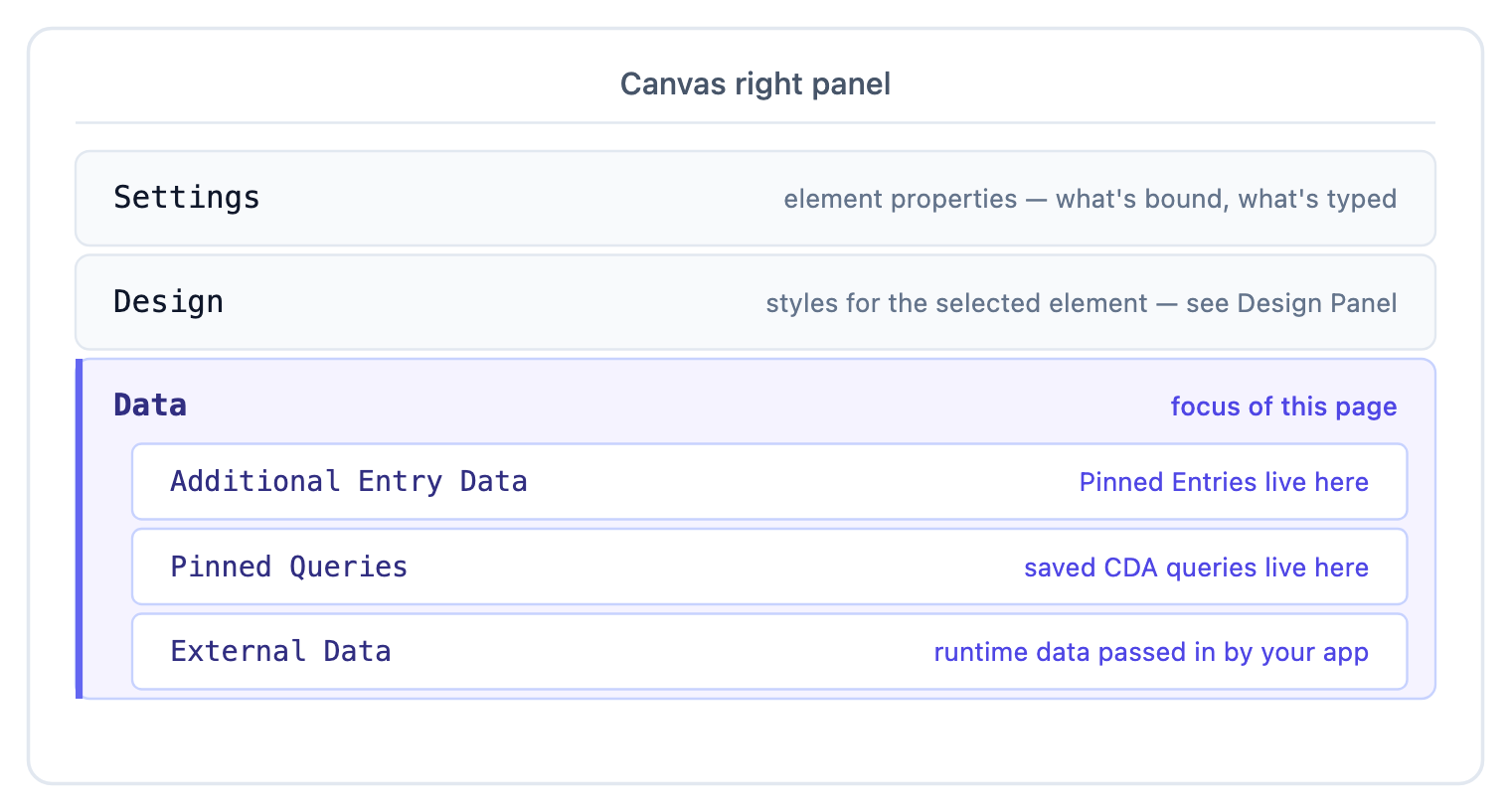
The Settings and Design tabs are element-level: they show properties of whichever element is currently selected on the canvas. The Data tab is element-level for component bindings and template-level for the three pinning sections above, which is why on a Freeform template you’ll typically work in the Data tab with nothing selected on the canvas.
About the section names: Studio’s UI labels them Additional Entry Data, Pinned Queries, and External Data. The “Additional Entry Data” section pins data onto the template you’re authoring, not onto the rendered URL. We use “template” in the surrounding prose to stay consistent with the rest of these docs. Treat “Additional Entry Data” as the section’s product name and “template” as where the pins live.
What the Three Sections Do
| Section | What it pins | What binds to it |
|---|---|---|
| Additional Entry Data | One or more specific entries from your stack, pinned by entry UID. Each pin has a slot label so the data picker can list them. | Any component prop binding can resolve against a pinned entry’s fields. See Pinned Entries. |
| Pinned Queries | One or more saved CDA queries: content type + filters + order + limit. Re-runs at render time. | Typically a Repeater’s Items binding: the result list drives iteration. See Pinned Queries. |
| External Data | A named slot for runtime data your app passes in (a logged-in user’s profile, a feature flag, anything not in the CMS). Set on the consumer side via the data prop on <StudioComponent />. | Component prop bindings resolve against the path the app supplies. Useful when the layout needs personalization context but doesn’t want a CMS round-trip. |
The three sections cover the three sources of data a Freeform template can use beyond static prop values: pinned single entries, pinned list queries, and runtime injection. A typical Freeform landing template uses Additional Entry Data for the hero block + Queries for the dynamic list below it + (rarely) External Data when it needs visitor-specific state.
These are gated on the project’s Freeform switch, not on the kind of template. With Freeform on, a Connected Template can pin entries and queries too, using them alongside the template.* scope it already gets from its connected entry. With Freeform off, the Data tab does not exist for either kind.
When the Tab and Its Sections Appear
- Freeform OFF: the right panel collapses entirely to Settings only. No Design tab, no Data tab. Pinning is unreachable.
- Freeform ON, nothing selected on the canvas: Data tab shows all three sections (Additional Entry Data, Pinned Queries, External Data) at the template level.
- Freeform ON, a component selected: Data tab shows that component’s prop bindings, with the Additional Entry Data / Pinned Queries / External Data accordions still available below so you can pin data without first deselecting.
The Settings-only collapse when Freeform is off explains why setup docs treat enabling Freeform as a project-level switch: turning it off doesn’t just hide pinning. It hides the entire Design tab and the Data tab.
How This Connects to the Design Tab
The Design tab is a sibling of the Data tab in the right panel. It controls styles (tokens, classes, free-form CSS) for the selected element. It’s not related to data pinning at all. It appears for every selected component that has style configuration.
See Design Panel for what styling controls live there, and CMS Binding: Design-side binding for binding design properties (background color, image src, etc.) to CMS data.
Empty State
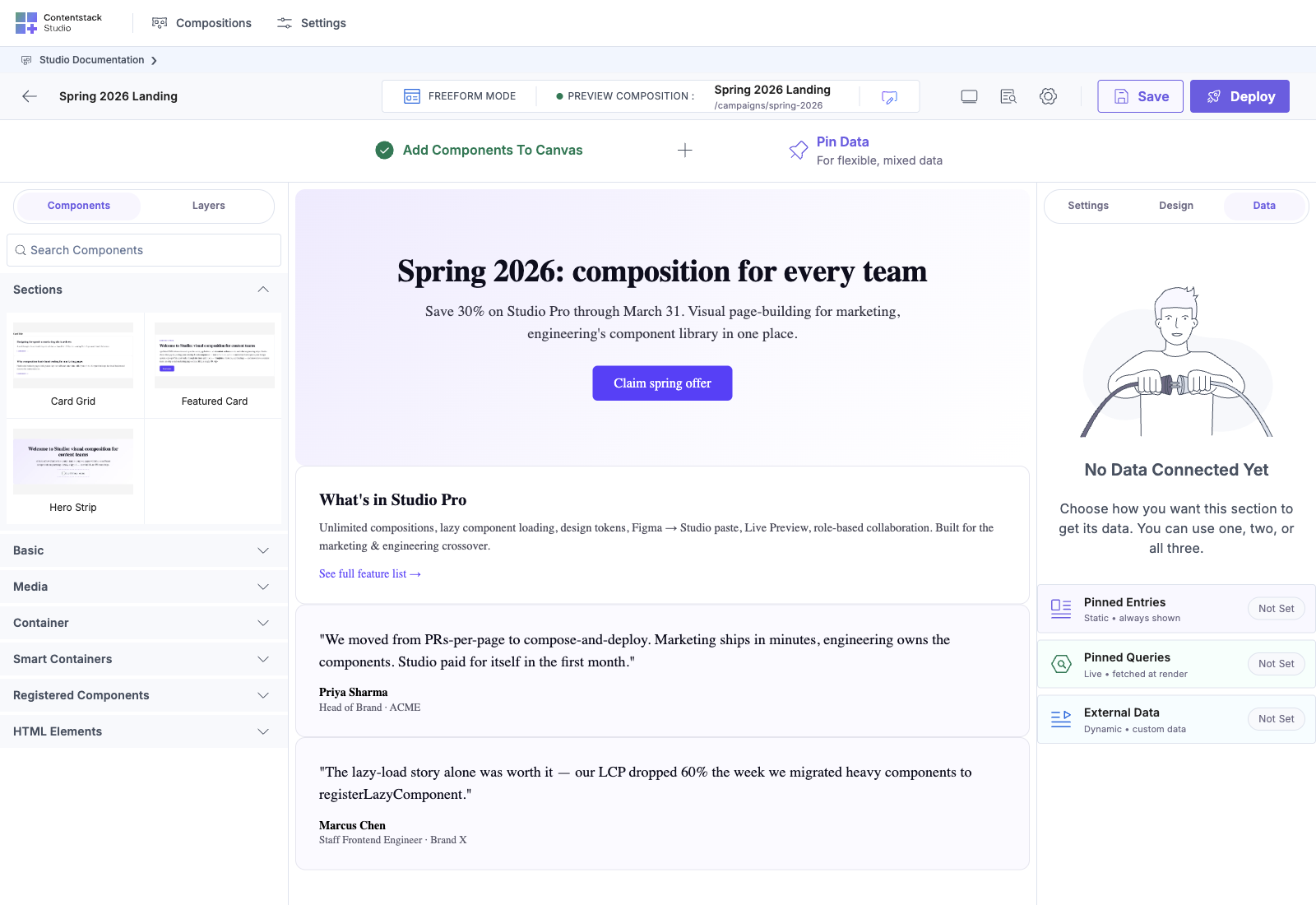
Open the Data tab on a new Freeform template with nothing selected and you’ll see the three section accordions with empty states, each prompting you to pin an entry, add a query, or configure an external data slot. Click the prompt to open the corresponding dialog: entry picker for Additional Entry Data, query builder for Queries, slot configurator for External Data.
Next
- Pinned Entries: the Additional Entry Data section, in detail
- Pinned Queries: the Pinned Queries section, in detail
- Design Panel: the sibling Design tab
- Enable Freeform Feature: the project switch that exposes Design + Data tabs