Freeform (optional)
By default, every template in Studio is a Connected Template, tied to a content type, with each entry of that type rendering through the template at its own URL. That’s the right model for most templates: blog posts, products, profiles, anything content-driven.
Freeform is an optional feature you can turn on when you need templates that aren’t tied to a content type: landing templates, campaigns, “About us”, “Contact us”, anything one-off.
If you don’t need that, ignore this chapter. Connected templates + Sections cover everything else.
Do It With a Skill
Start with choose-connected-vs-freeform. Connected is the default and Freeform is the last resort, so it is worth having the decision made deliberately. It hands off to the matching builder.
curl -fsSL https://studio-documentation.contentstackapps.com/install.sh | sh
Turning Freeform On
In Studio, open your project’s Settings, go to Configuration, and flip Enable Freeform Feature to on.
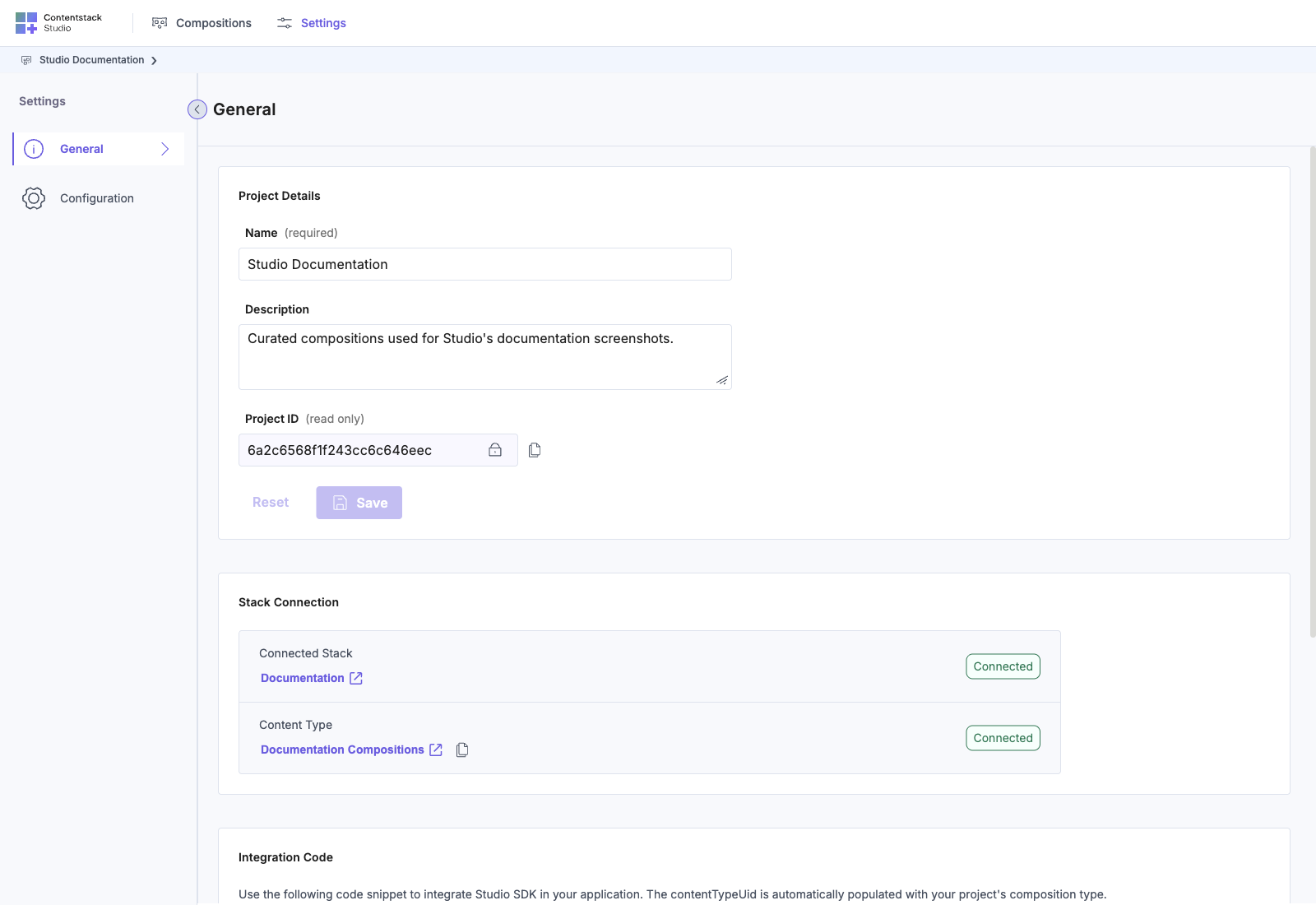
One toggle. That’s it.
Freeform may be plan-dependent. If the toggle isn’t writable, contact your Contentstack account owner.
What Turning It on Gives You
| Surface | Off | On |
|---|---|---|
| Composition creation | Connected templates only | Connected templates plus Freeform templates |
| Composition list | Connected templates only | Mixed: Freeform templates show - in Connected Content Type |
| Canvas top bar (on a Freeform template) | n/a | A FREEFORM MODE badge replaces the content type chip |
| Canvas right panel | Settings only | Full tab chrome: Settings + Design + Data. The Data tab gets three template-level sections: Additional Entry Data, Queries, and External Data |
| URL editor (on a Freeform template) | n/a | Limited variable chips ({{composition_uid}} only, no {{entry.*}}) |
What Turning It Off Does
Existing Freeform templates aren’t deleted, but the right panel collapses to Settings only. The Design and Data tabs both disappear. Any template that relies on Pinned Entries or Pinned Queries loses access from the canvas (and your authors lose access to the Design tab entirely). If your project ships Freeform templates, don’t turn it off without migrating them first.
What Freeform Templates Give You
With Freeform on, the + New Template flow now offers two choices, Connected (the standard template, tied to a content type) and Freeform (a standalone template):
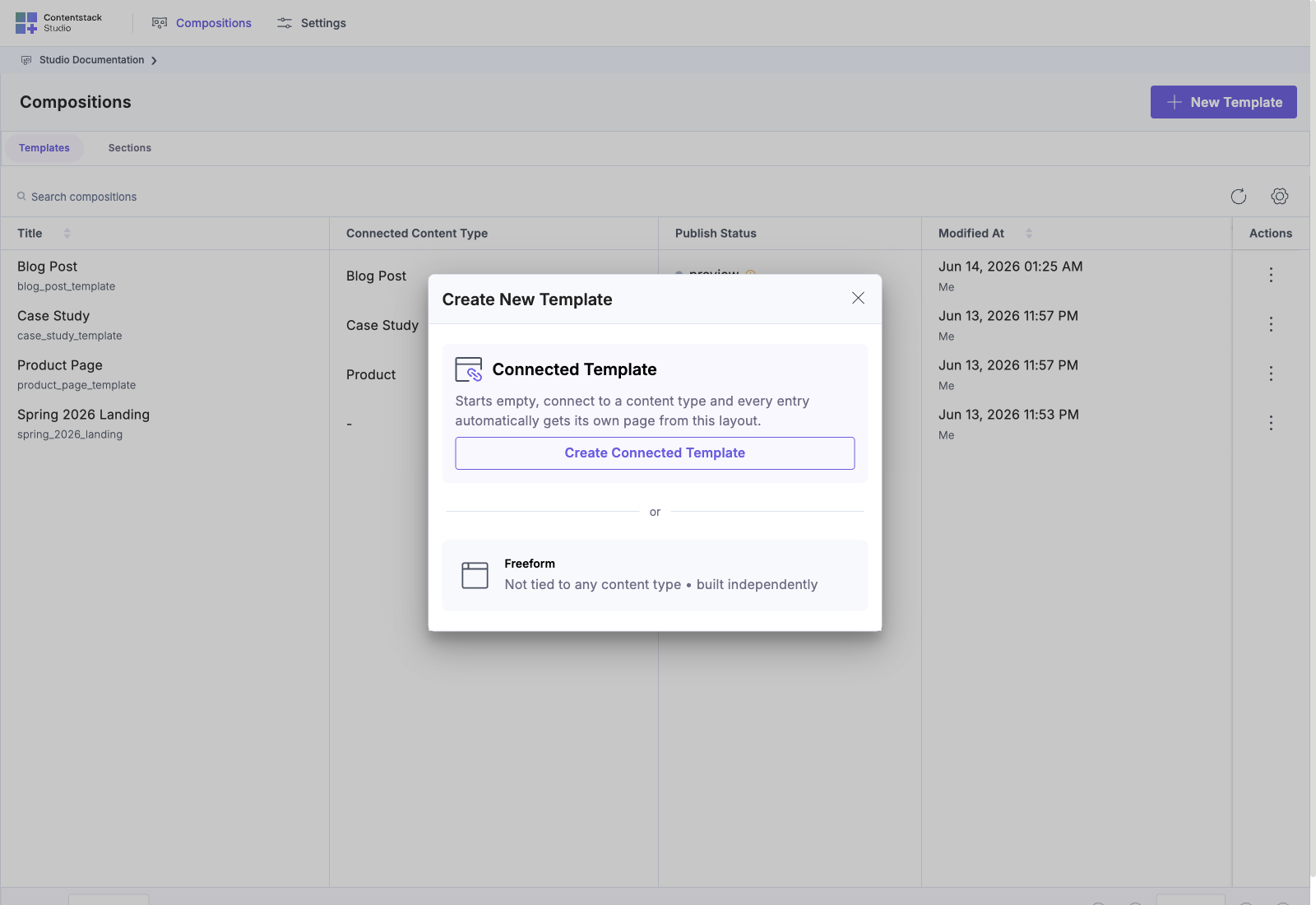
Once enabled, you can create a Freeform template alongside regular Connected templates. A Freeform template:
- Has no content type behind it
- Has an auto-generated URL ({{content_type_uid}}/{{composition_uid}} by default)
- Cannot use {{entry.*}} URL variables: there’s no entry
- Gets full right-panel chrome (Settings + Design + Data tabs) with three template-level pinning sections (Additional Entry Data, Queries, External Data) inside the Data tab
You still drop sections and components the same way. You still hit Save and Deploy. The difference is in where the data comes from.
Getting data onto a Freeform template
A Connected template has one entry behind it. Bindings naturally reach template.<field>. A Freeform template has no entry, so the layout has nothing to bind to by default. You bring data in explicitly through one of these three:
| Source | What it does | When to reach for it |
|---|---|---|
| Pinned Entry | Pin a specific entry onto the template. Its fields become bindable in the Data Picker just like any other entry. | “This campaign’s headline lives in Entry X” (single-entry references). Pick a hero entry, a CTA entry, a featured product entry. The template shows whatever’s in that entry today. If you re-pin to a different entry tomorrow, the bindings keep working. |
| Pinned Query | Pin a CDA query (content type + filters + order + limit). Repeaters iterate over the result. | “Show the latest five blog posts” (dynamic lists). The query re-runs on every render, so the list always reflects current published content. |
| Component default data | Your custom components’ defaultValue props from their schema. No CMS round-trip. | Purely presentational content: decorative text, layout copy, fixed CTAs. Cheapest option. Useful for the parts of the template that won’t change per render. |
Pinning happens in the canvas right panel’s Data tab, at the template level, with nothing selected on the canvas:
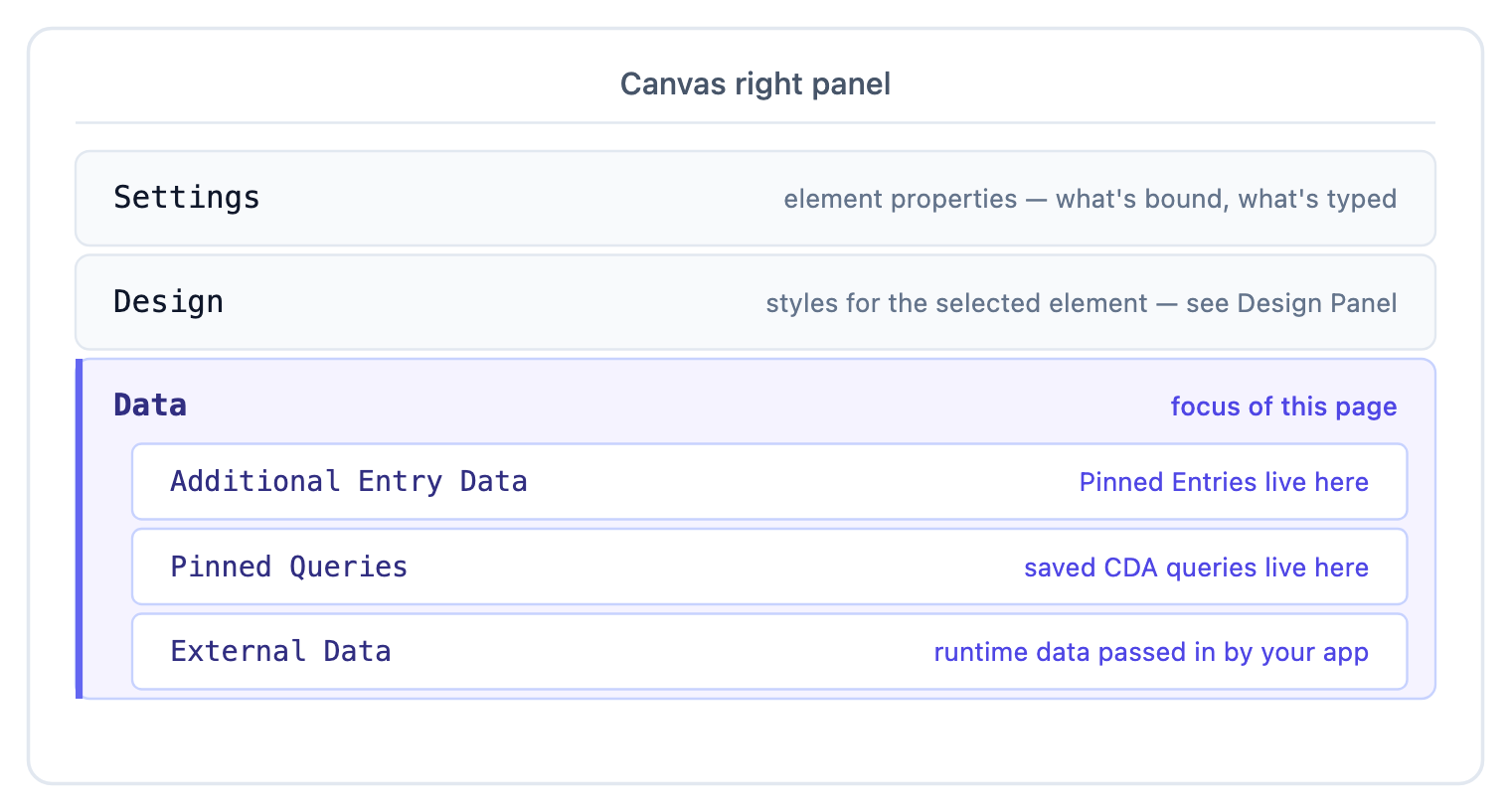
These three sections are siblings inside the Data tab: there isn’t a separate “Page Data” tab. See The Data tab: Additional Entry Data, Queries, External Data for the full tab structure.
Both pinning surfaces are explained in their own sub-pages: Pinned Entries and Pinned Queries. The short version of when to choose which:
- One known entry: use a Pinned Entry. (Hero entry, featured product, campaign metadata.)
- A list that should refresh as content changes: use a Pinned Query. (Latest posts, top products, all entries in a tag.)
- A static fixed value: type it as the prop’s value (or rely on the component’s defaultValue).
A typical Freeform template uses all three: Pinned Entry for template-level branding, Pinned Query for the dynamic content list below it, static values for decorative copy.
URL pattern
The Edit URL modal on a Freeform template deliberately offers a smaller set of variables than a Connected template’s:
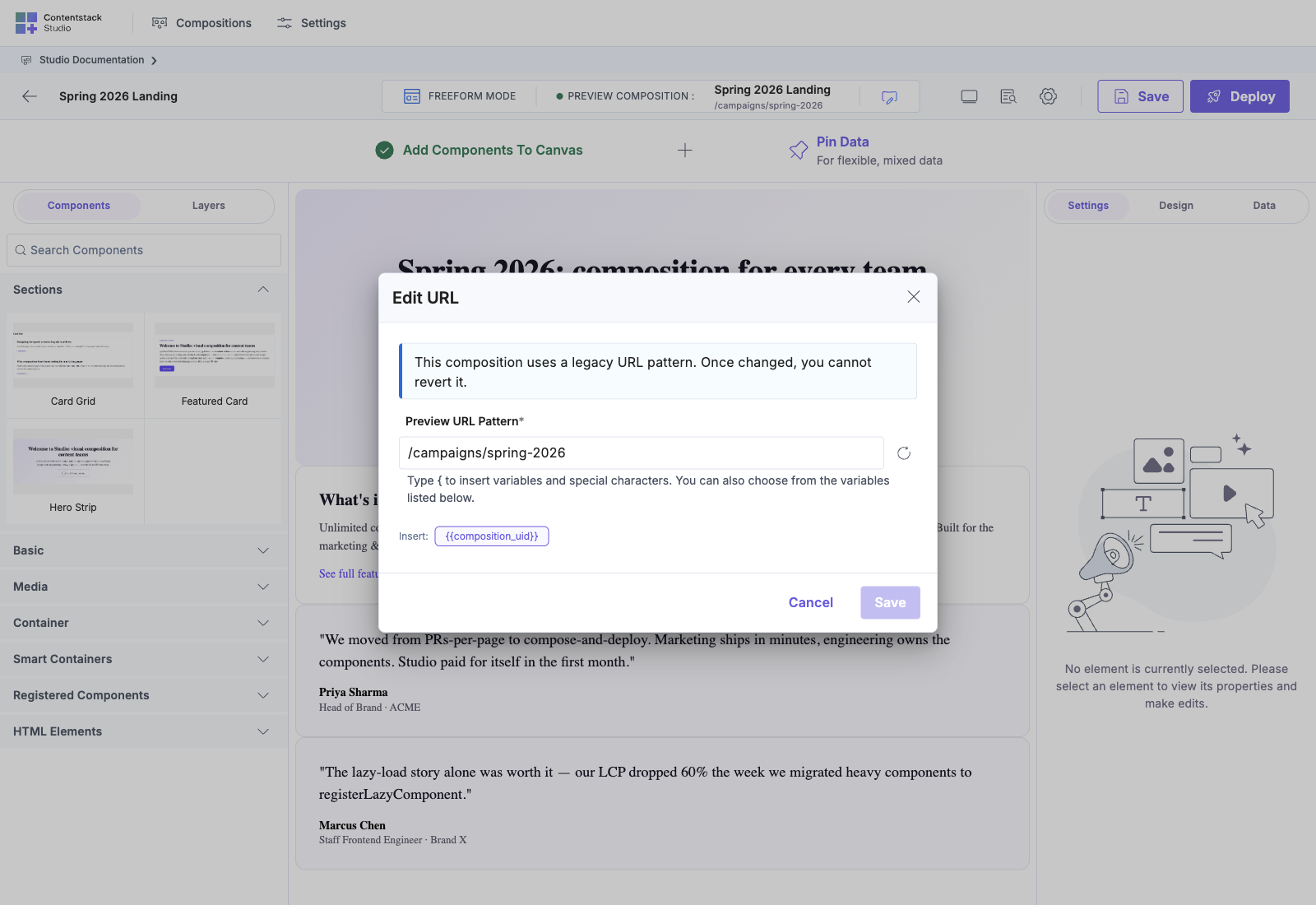
Default pattern: {{content_type_uid}}/{{composition_uid}}. No {{entry.*}} variables are available. Studio doesn’t show them in the Insert chip row, and typing one in manually won’t resolve at render time, because a Freeform template has no entry behind it. If a Freeform template needs entry data, you bring it in via Pinned Entries, not via the URL pattern. The only entry-style variable available is {{composition_uid}} (which identifies the composition, not an entry). Context variables {{environment}} and {{branch}} can be typed manually but are inert: they resolve to nothing. {{locale}} is accepted by the pattern engine but avoid using it. Carry locale via your routing layer + the SDK’s locale query option (see Multi-locale at scale).
Where Freeform templates render
Same as Connected templates, at the URL the pattern resolves to, on a route in your site that mounts <StudioComponent />.
Where to Go Next Inside Freeform
- Pinned Entries: pin specific entries onto a Freeform template
- Pinned Queries: pin a query result for Repeaters to iterate
- The Data tab: the right-panel surface that hosts the three pinning sections
- Freeform templates: full reference: URL variables, canvas chrome details
- Recipe: Freeform landing template