Binding a Section to CMS Data
A Section renders content from a CMS entry. This page is the single canonical explanation of how that happens — the two pieces that make it work: a linked schema (declares the shape the Section expects) and auto-binding (Studio matches that shape to whatever field the Section is dropped over).
Do It With a Skill
Binding happens as part of authoring, so the skill to reach for is the one building the thing: build-section for a section, build-connected-template for a template.
curl -fsSL https://studio-documentation.contentstackapps.com/install.sh | sh
When a binding will not resolve across a reference chain, resolve-reference-depth walks it one hop at a time and stops to ask you which reference field to follow next.
Part 1 — Linked Schema (declares the Shape)
A Section’s linked schema declares the shape of data it expects. When the Section is dropped onto a Template, Studio finds a field on the Template’s connected content type with a matching shape and binds the Section to it.
This is the whole point of a linked schema: bind the Section’s insides once, and the data resolves by itself every time the Section is dropped. The Template author drops it and the heading, image and CTA are already populated. They never open the Data Picker, and you never rebind the Section per Template. Drop the same Section on three Templates over three different content types and each one resolves against its own field, from the one declaration. What the Template author actually sees walks through that from their side, including what happens when nothing matches.
A Section without a linked schema skips all of this: it has no data to bind and renders the same content wherever it lands, which is what you want for a footer or a divider strip but not for anything content-driven.
Matching is structural, not name-based. Field names can differ — Studio remaps by position and data type. What has to align is the structure.
The ideal Section anchor
Studio matches strongest when the Section is anchored on a reusable structural field type:
| Field type | Why it’s a great Section anchor |
|---|---|
| Global Field | Defined once, embedded in many content types unchanged. Guaranteed identical structure everywhere — the strongest match. |
| Group | Same child types in the same order → it matches, even if names differ. |
| Modular Blocks | Section narrows to one block; the page’s blocks field just needs to include that block. |
| Reference | Matches when the Section and page reference fields list the same set of referenced content types (sorted equality on reference_to). |
Picking a Global Field is almost always the right move. It sidesteps every nested-name issue and works across content types by construction.
One Section, many schemas
A single Section can be linked to multiple schemas — different fields on the same content type, or fields across different content types — as long as the structure matches.
Example — a “Featured Card” Section reused across content types. Define a Global Field once:
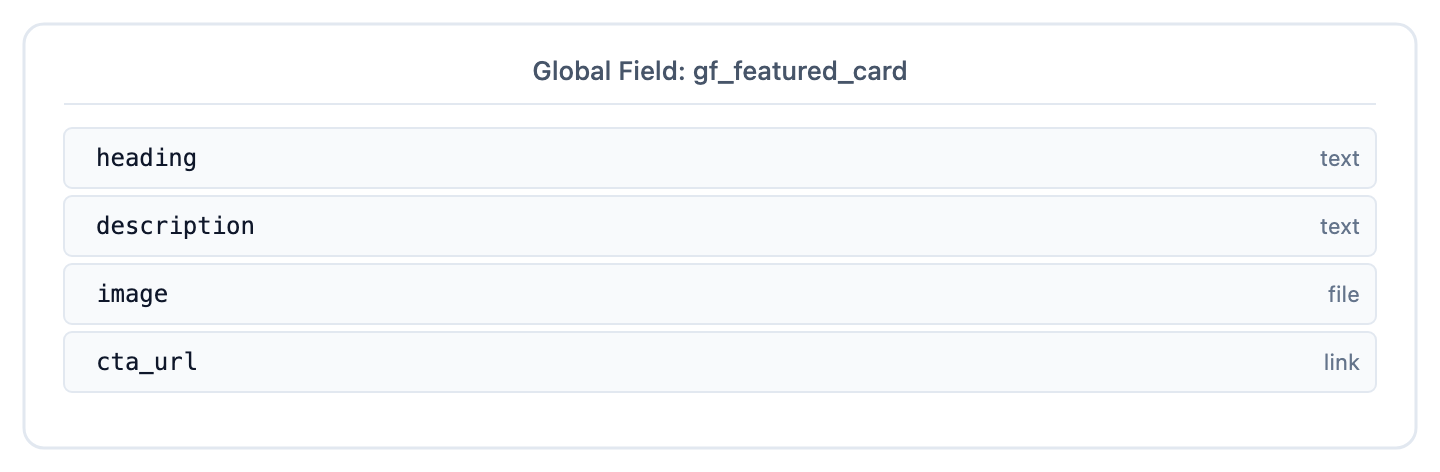
Build one Featured Card Section linked to gf_featured_card. Embed the Global Field into any content type that needs it — under whatever local name makes sense:
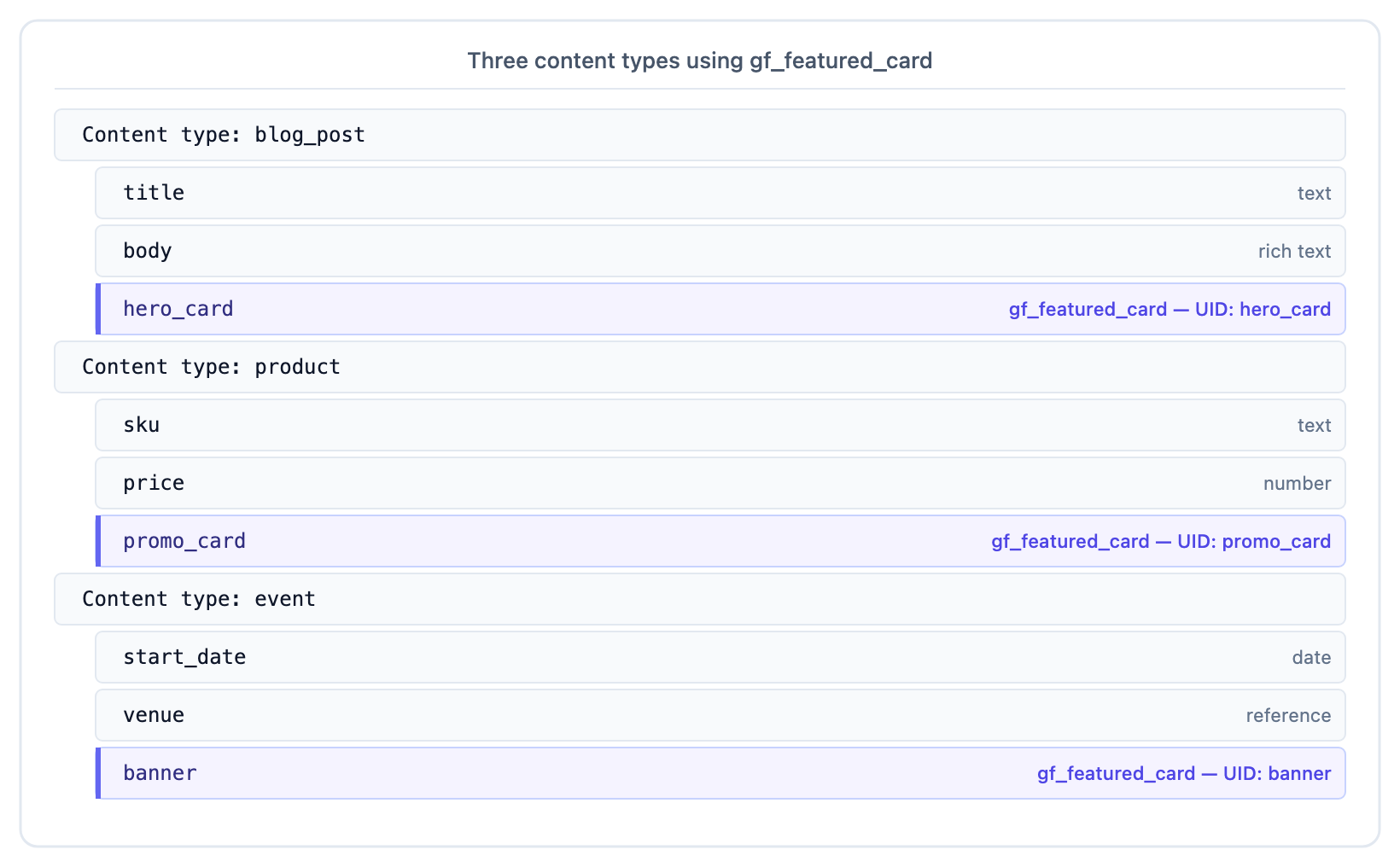
Drop Featured Card on a blog_post Template → matches hero_card. On a product → matches promo_card. On an event → matches banner. The field UIDs differ; the Global Field guarantees the inside is identical, so the Section binds automatically.
If a content type exposes the Global Field twice (say promo_card and secondary_card), Studio binds to one and shows a picker in the Section’s settings so the author can switch.
What “matching structure” means
| Field type | Rule |
|---|---|
| Group / Global Field | Same number of immediate children with the same sorted set of data types. Child names can differ — Studio builds a positional remap (e.g. heading → title). |
| Modular Blocks | At least one block name in common between the Section’s blocks and the page’s blocks. |
| Reference | Same set of referenced content types (sorted equality on reference_to). |
| Any | Same data_type on the field, same multiple/single flag. |
Nested groups caveat. The positional remap is one level deep. If your Section binds a group inside another group, the inner group’s name must match on both sides — only top-level names get remapped. Prefer Global Fields for nested shapes — they sidestep the issue because the structure is literally identical wherever you use it.
Part 2 — Auto-Binding (matches Shape to Drop Location)
Studio doesn’t just look at the page’s top-level fields when the Section is dropped. It auto-binds against the scope at the drop location — the schema visible where the Section sits in the tree.
What “scope” means
| Drop location | Where Studio looks for matches |
|---|---|
| Root of a page | The page’s top-level fields |
| Inside a Repeater | The schema of the Repeater’s iteration item |
| Inside a Modular Block | The fields of that specific block |
| Nested (Repeater inside Repeater, block inside group, …) | The innermost scope; scopes chain |
Three possible outcomes
| Result | What happens |
|---|---|
| Exactly one match | Studio binds automatically — no manual step. The right-panel Properties → Section Data row shows what the Section is reading from. |
| Multiple matches | Studio binds to one (the first in schema order). Open the Section Data picker to switch. Dropping the same Section twice lets each instance read from a different field. |
| Zero matches | Section drops unbound; open the Section Data picker and choose one if a compatible target exists. Content shows the components’ default values instead. |
The scope-root match
Special case worth knowing: if the surrounding scope itself mirrors the Section’s shape (e.g. a Repeater iterating a list of gf_featured_card), the Section binds directly to the iteration item — no wrapper field needed. This is what makes the Section-inside-Repeater pattern Just Work — see Recipe: card grid with slots.
Worked example — same Section, three drop locations
A Featured Card Section anchored on gf_featured_card:
![landing_page schema with three drop targets — hero_card at root, card inside cta block, items[] inside gallery block's Repeater — each annotated with its auto-derived binding](../assets/diagrams/sections-auto-binding-drop-targets.png)
Same Section, three drop locations, three different bindings — all picked automatically.
Part 3 — Section Data (on Any Page, Including Freeform)
Auto-binding needs a Template’s connected content type to match against. A freeform page has none, so nothing matches and a dropped Section renders its components’ default values.
Section Data is the per-placement answer to ”which document does this placement read from?”. It is a full data binding, not a field name, so it can name a whole document as easily as a field on the page. It sits on every placement, in both composition types, and it replaced the older Data source dropdown — that dropdown could only ever list fields of a connected content type, which is exactly the case a freeform page doesn’t have.
Select the placed Section on the canvas, then in the right panel open Properties → the Section Data row. (The Section’s Design/Preview Section Mode toggle lives next door under Configuration, beside the Repeater and Condition Block toggles it behaves like.)
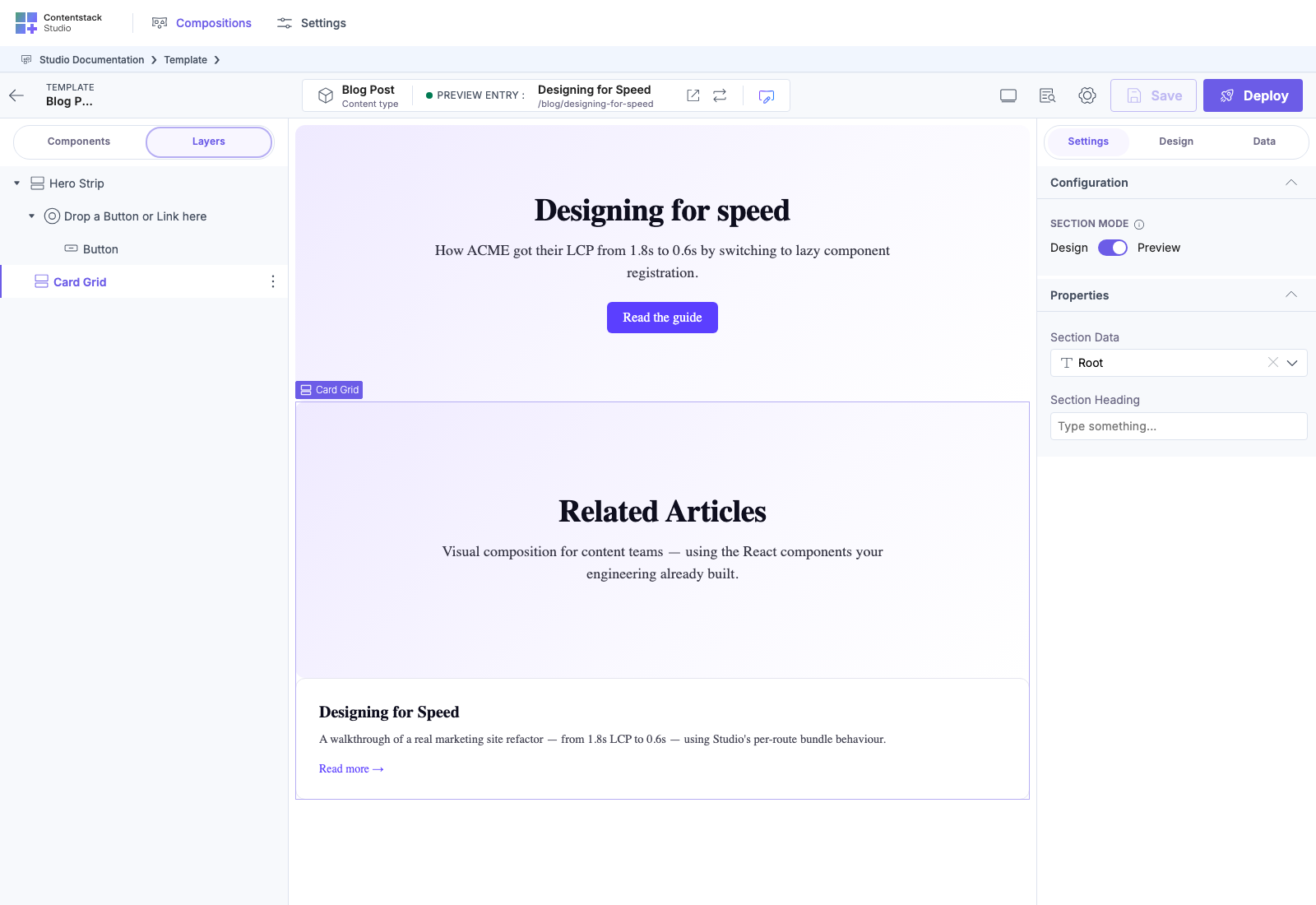
What it can point at
| Target | Typical use |
|---|---|
| a field of the Template’s content type | a Template page — this is what auto-binding fills in for you |
| Entire Entry on a pinned entry | a freeform page: pin the entry in Data, then root the placement at the whole entry |
| a field inside a pinned entry | one group, Global Field, Modular Block or reference within that entry |
| a nested field several levels down | a group inside a group inside the entry — the picker walks the whole tree |
| a query result | a freeform Collection Section rendering many entries |
| the surrounding Repeater item | a Section inside a Repeater — the default there, and what makes one Section render every row |
What the picker offers
The picker is the same data binder used for every other binding, with one difference: it is a shortlist. Only targets whose structure fits what the Section declared are offered.
| Rule | What you see |
|---|---|
| Incompatible targets are hidden, not grayed | A content type has hundreds of fields and a handful of candidates. Graying them all out left the tree unreadable, so nothing you cannot pick is drawn. |
| A container survives if anything beneath it matches | A group that cannot itself be a root still appears when it is the only route to a nested field that can. Those rows are visible but not selectable. |
| A match hides its own items | Pick a matched list and you get the list; its individual items are not offered as rival choices. They stay visible only when a different nested field beneath them matches. |
| Entire Entry | A whole document is picked from the Entire Entry row above the entry’s fields, never from a tree row. |
| References are not drilled | Referenced content reaches a Section through a Repeater + Condition Block, so the picker doesn’t offer to walk into an unresolved reference. |
| Reopening drills in | Reopen the picker on a bound placement and it opens inside the bound entry. Back returns to the list and stays there. |
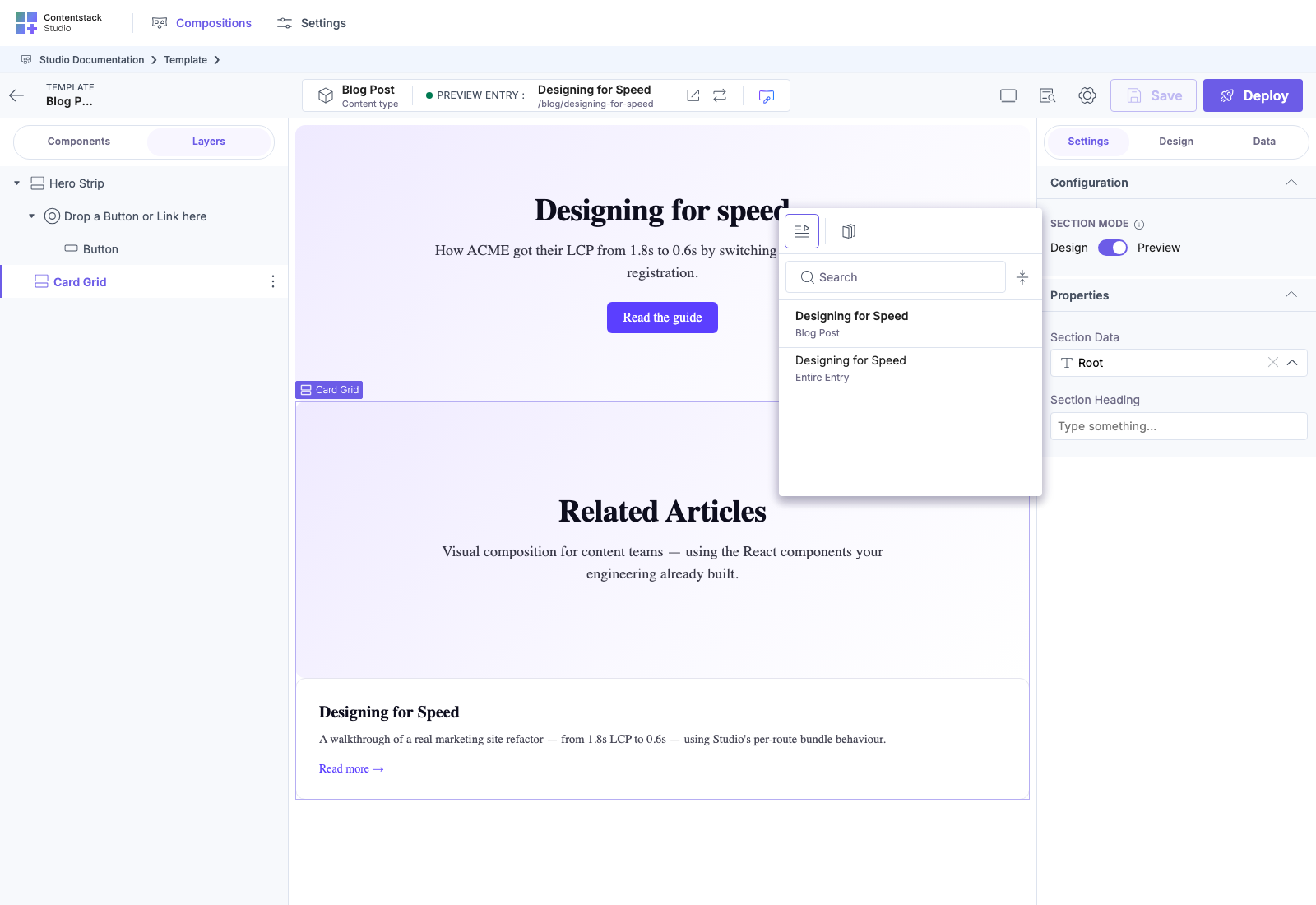
Which targets qualify
Only container-shaped things can root a Section: Group, Global Field, Modular Blocks, Reference, File, Link, and whole documents (an entry, a group item, a block item, a resolved reference, a query result). A scalar field never qualifies — the Section’s inner bindings read fields of their root, so a text field could only ever resolve to nothing.
Matching runs in two passes over the Section’s linked schemas:
- Exact — the shapes are the same (same child count, same sorted child data types).
- Containment — everything the Section declares exists on the target, and the target may hold more. Extra fields on the target are ignored.
Names never have to match either way; Studio builds the positional remap (Part 1 § What “matching structure” means). Whole-document targets are the one exception: they are still matched on exact shape, so a Section shaped like a small group can root at a matching field of a bigger entry but not at the bigger entry itself.
What a pick changes
Three things follow automatically, so a pick is one click rather than a checklist:
- Exposed props re-point at the new root — unless you have edited one by hand. A manual edit means the page owns that value from then on; if it stops resolving after a root change it renders blank rather than silently reverting to a value you did not choose.
- The references the Section needs are added to the pinned entry’s fetch, so nested content resolves on the canvas and on the deployed site rather than coming back as empty stubs.
- Cardinality is applied — a single-cardinality Section rooted at a list renders the first element; a collection Section iterates.
Clearing it
The ✕ on the row clears the pick and restores the Section’s declared field (Restore default on a Template). It is offered only when the stored root actually differs from what the placement would resolve to on its own — a pick identical to the derived answer is not an override, and clearing it would change nothing on screen.
Inside a Repeater
A Section inside a Repeater resolves relative to the iteration item by default. That is what makes one Section render every row.
Pointing Section Data at a document instead is the escape hatch, and it is absolute: every iteration then shows that same document. Useful for a strip that repeats a layout but always reads one global entry; a bug if you expected per-row content.
On a Template vs. on a freeform page
| Template | Freeform | |
|---|---|---|
| Starting state | pre-filled from the Section’s linked schema | empty — you pick |
| Changing it | switches to another matching field, a pinned entry, or a query | picks any matching target |
| Clearing it | Restore default brings the linked-schema field back | Section shows component defaults |
A Section with no linked schema has no declared shape, so its Section Data row has nothing to offer — those Sections render the same wherever you drop them, which is exactly what makes them useful for footers and divider strips.
Pitfalls
| Pitfall | Why it bites | Fix |
|---|---|---|
| Row shows a target, canvas shows placeholders | A placement containing a Repeater, Condition Block or Section Slot renders drop zones in Design mode by contract | Switch Section Mode (under Configuration) to Preview before judging the data |
| The field you wanted isn’t in the tree | Incompatible targets are hidden, so a shape mismatch looks like a missing field — a scalar target, a single/multiple mismatch, or a whole-document target that isn’t an exact shape match | Root at the matching field instead of the document, or add a linked schema entry for the shape you actually have |
| Every Repeater row renders the same content | Section Data names a document, which is absolute, overriding the row’s iteration context | Clear it to fall back to the iteration item |
| An exposed prop went blank after a root change | Hand-edited props are never re-pointed; the page owns them | Re-bind that prop by hand, or clear the manual edit |
| ✕ is disabled | The stored root equals the derived one, so there is nothing to clear | Nothing to do — the placement already reads what it would read anyway |
| A query result won’t root a Modular-Blocks Section | Whole-document matching has no Modular Blocks rule | Root at the blocks field of a pinned entry instead |
Every rule in one lookup table: Section Data reference.
What the Template Author Actually Sees
The “binds automatically” line above is doing real work. Here’s what a Template author experiences:
- They drop the Section. It appears on the canvas with its inner components already showing bound content — heading text populated, image visible, CTA label set. They didn’t touch the Data Picker.
- If the Template’s content type matches one the Section was linked to, Studio scopes the Section to the field on the Template’s content type that has the same structural shape.
- If the page has two fields that both match (two embedded gf_featured_card instances, say), Studio binds to one; the Section Data picker switches to the other.
- If nothing matches, the Section still drops but its inner bindings have nothing to resolve — content shows defaults. Either add the new content type to the Section’s linked schemas list, or set a Section Data by hand.
For the Template author the experience is just: drop, done. The Section’s job is to declare the shape; the Template author’s job is to drop it in the right place; Studio does the wiring.
When Auto-Binding Doesn’t Apply
- Sections without a linked schema skip auto-binding entirely, and have no Section Data. They have no data to bind. Same content wherever you drop them — useful for purely presentational sections like footers and divider strips.
- If a Section has multiple linked schemas (different content types), Studio matches the schema entry that corresponds to the Template’s connected content type. On a freeform page there is no such content type, so the Section Data records which linked schema it matched.
Next
- Section Slots — how a Section lets Templates fill regions per-instance
- Expose Section Props — how a Section lets Templates override individual values per-instance
- Matching rules reference — every linked-schema rule in one lookup table
- Section Data reference — which targets qualify, how a root resolves, and the known limits
- Recipe: card grid with slots
- Recipe: multi-schema Section