Freeform Landing Template With Pinned Data
A complete walkthrough for the most common Freeform use case: a campaign landing template that assembles content from several entries and a dynamic query, with no single connected content type behind it.
You’ll build:
- A Freeform template at /campaigns/spring-2026
- One Pinned Entry providing the template-level hero
- One Pinned Query pulling the current top 3 products
- Reusable sections binding to both sources
- Lives at a real route on your site
Prerequisite: Enable Freeform Feature is on in your Studio project (Enabling Freeform). If you haven’t enabled it, do that first. The Design and Data tabs both disappear without it, so the Additional Entry Data / Queries sections you’ll need below are unreachable.
Do It With a Skill
build-freeform-template authors the template with its Pinned Entries and Pinned Queries, after checking the page genuinely cannot be Connected.
curl -fsSL https://studio-documentation.contentstackapps.com/install.sh | sh
The Setup
Two existing content types in your stack:
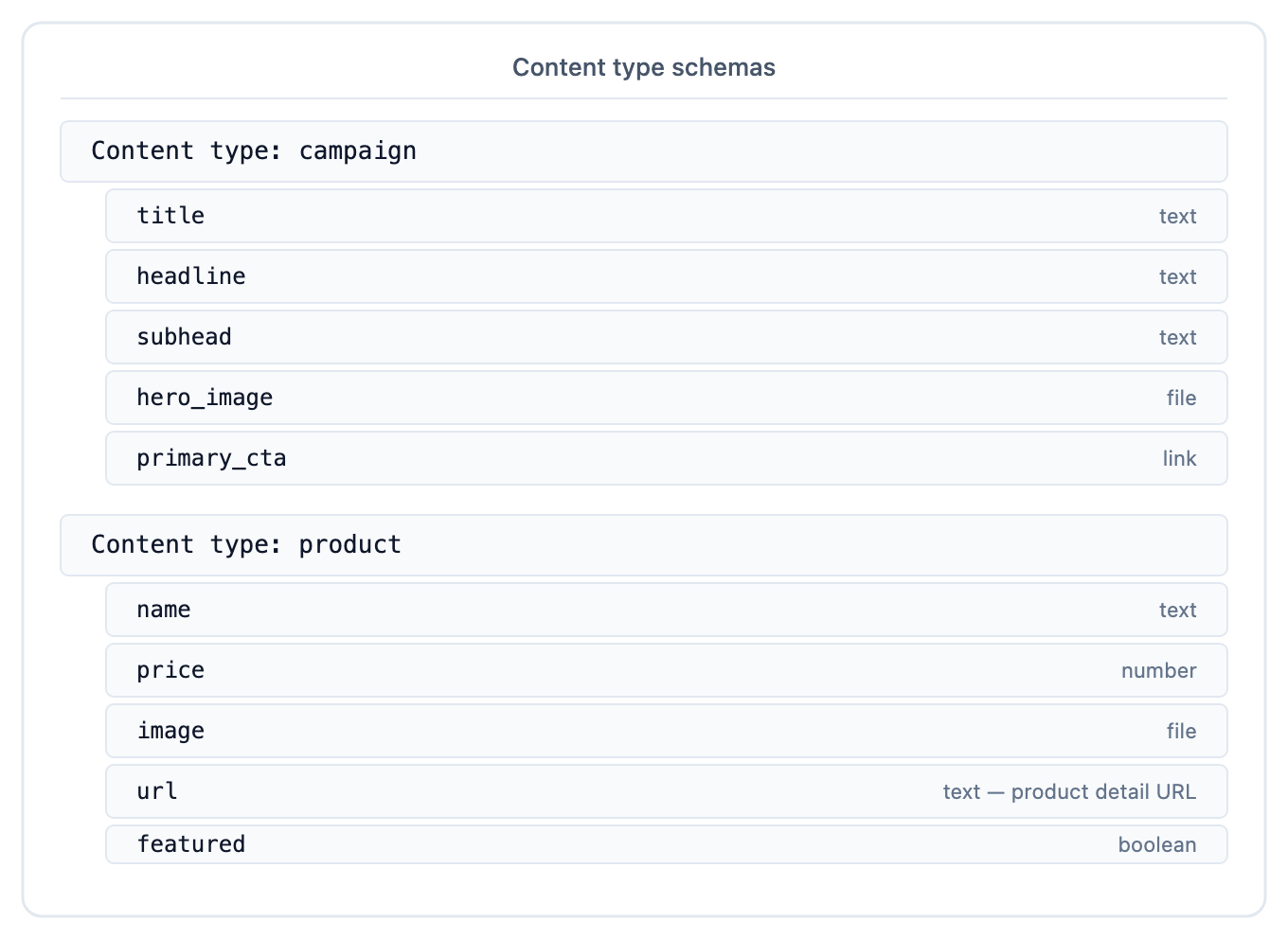
A campaign entry exists with a hero ready to go. Multiple product entries exist. Some have featured: true.
Step 1: Create the Freeform Template
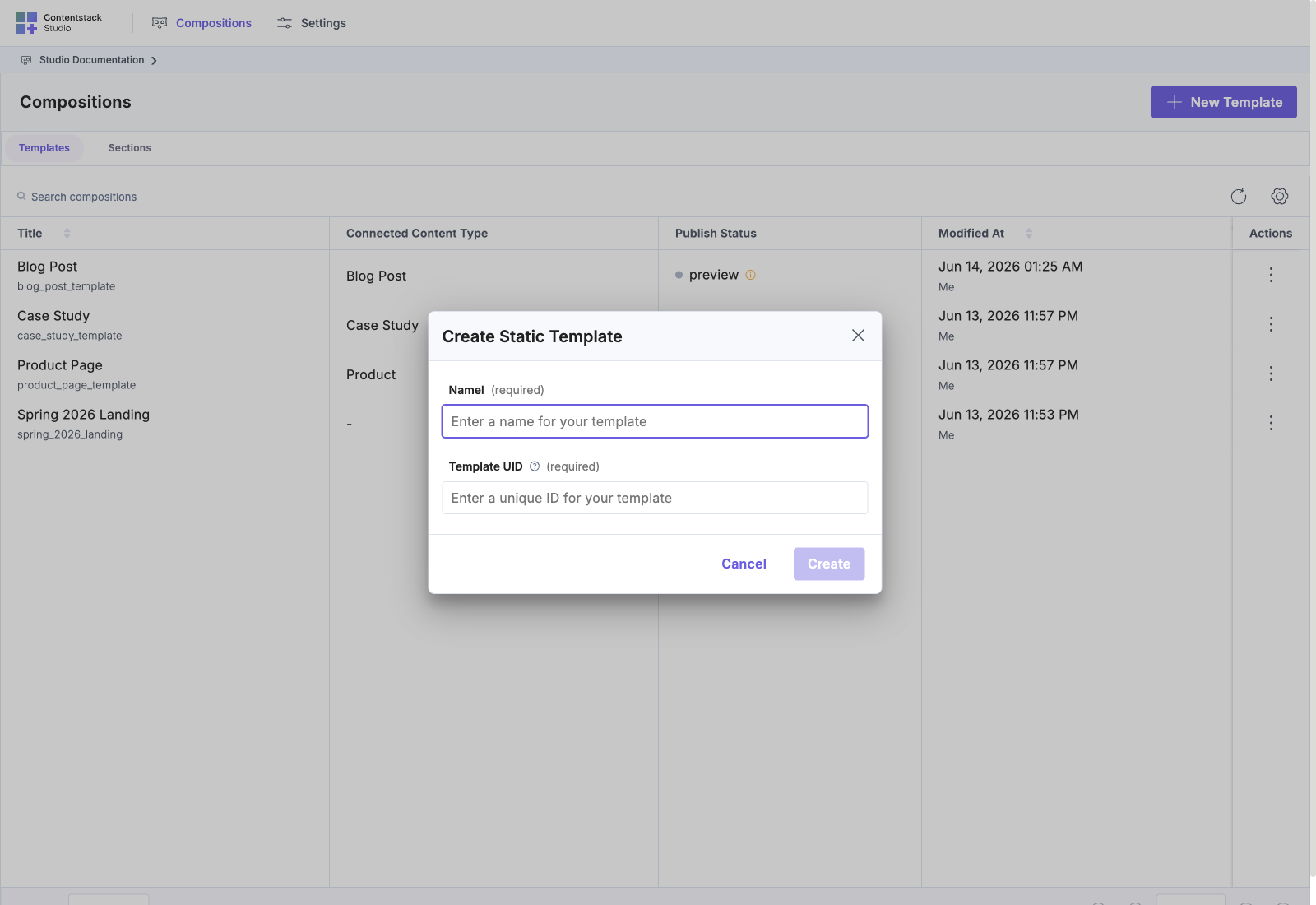
- In Compositions, open the Templates tab and select + New Template
- In the create dialog, pick Freeform (not “Connected Template”)
- Name it spring_2026_campaign
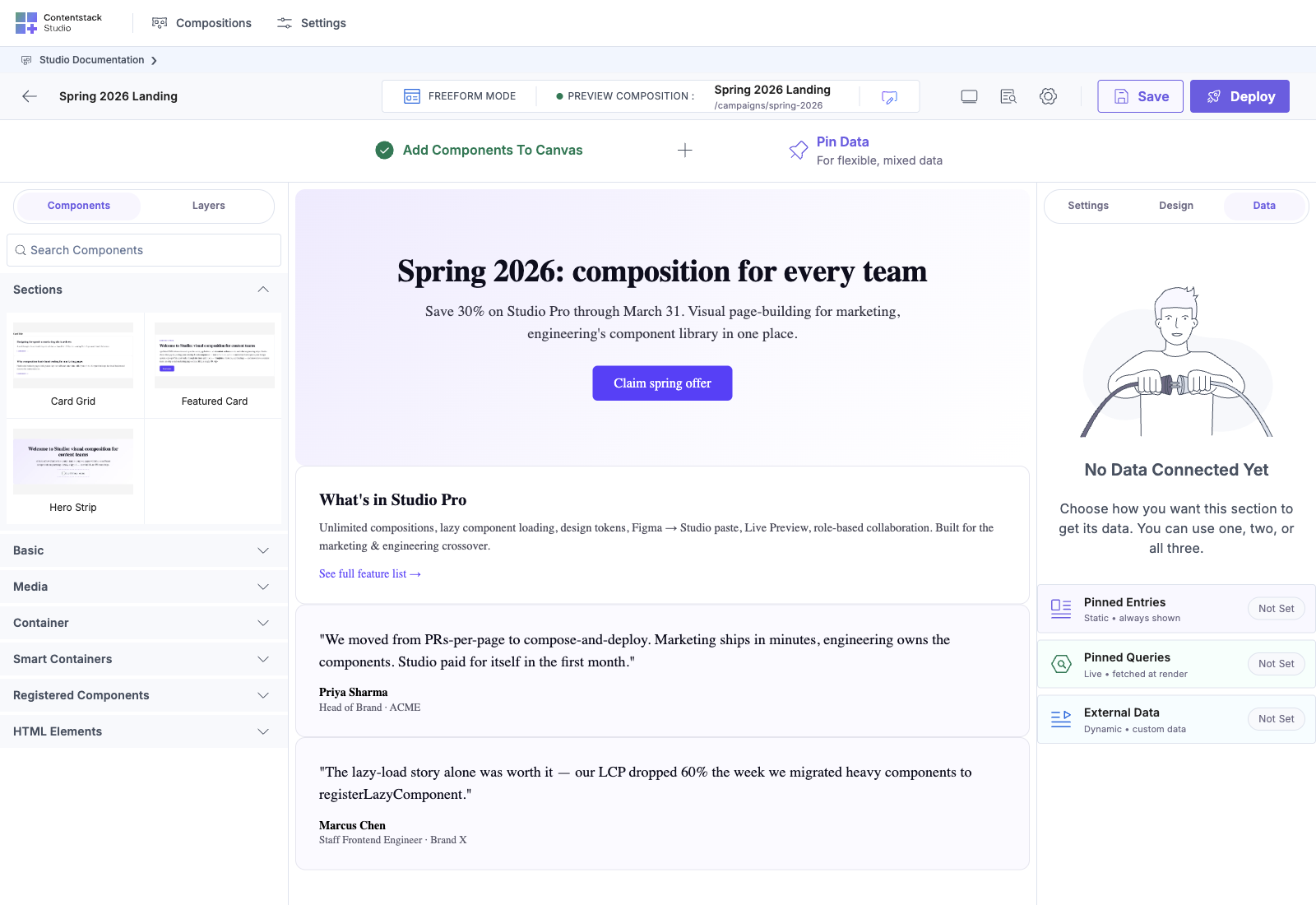
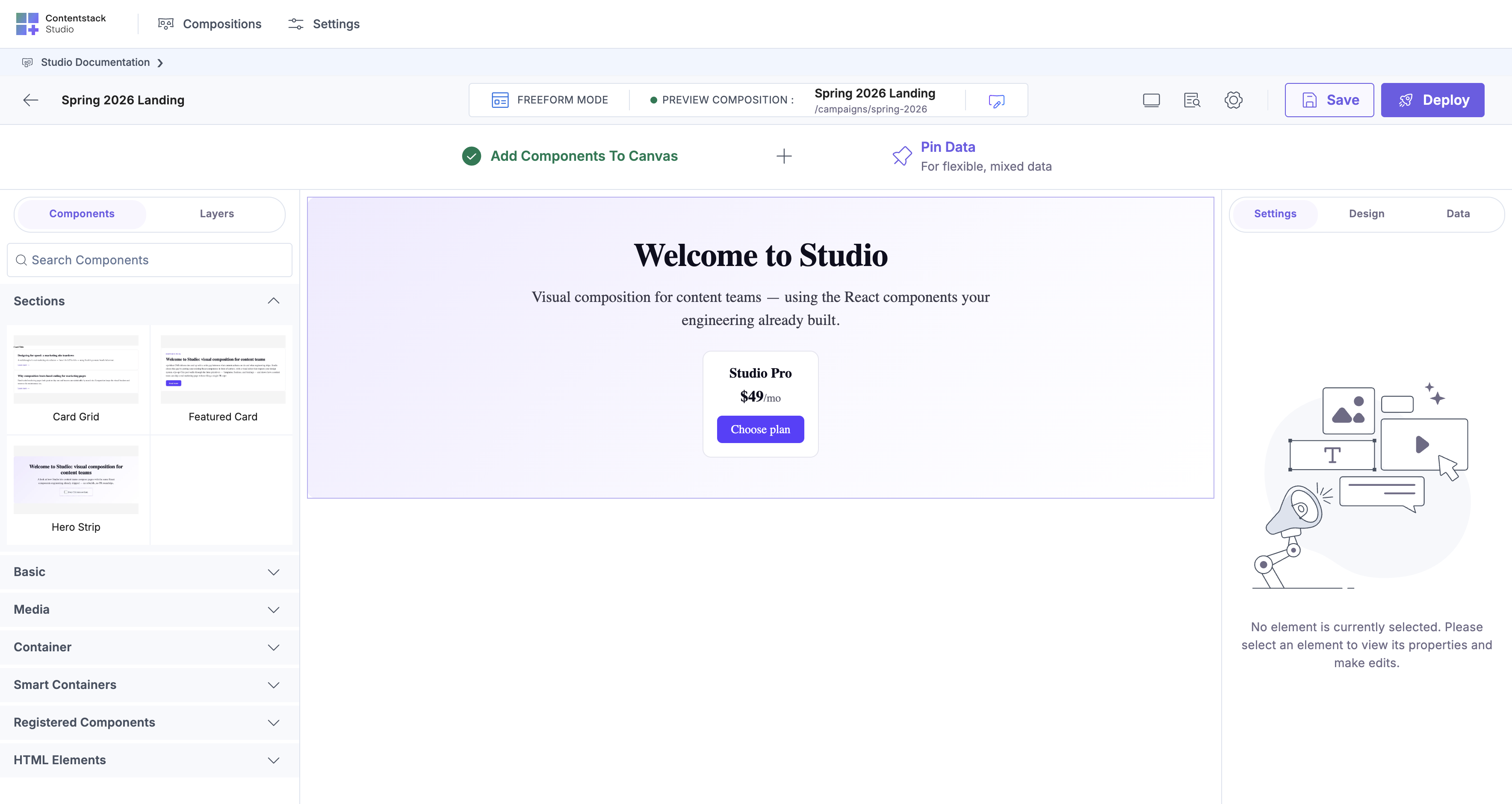
Studio opens a canvas with the FREEFORM MODE badge in the top bar and an empty canvas with onboarding helpers: “Add Components To Canvas · Pin Data”.
Step 2: Set the URL
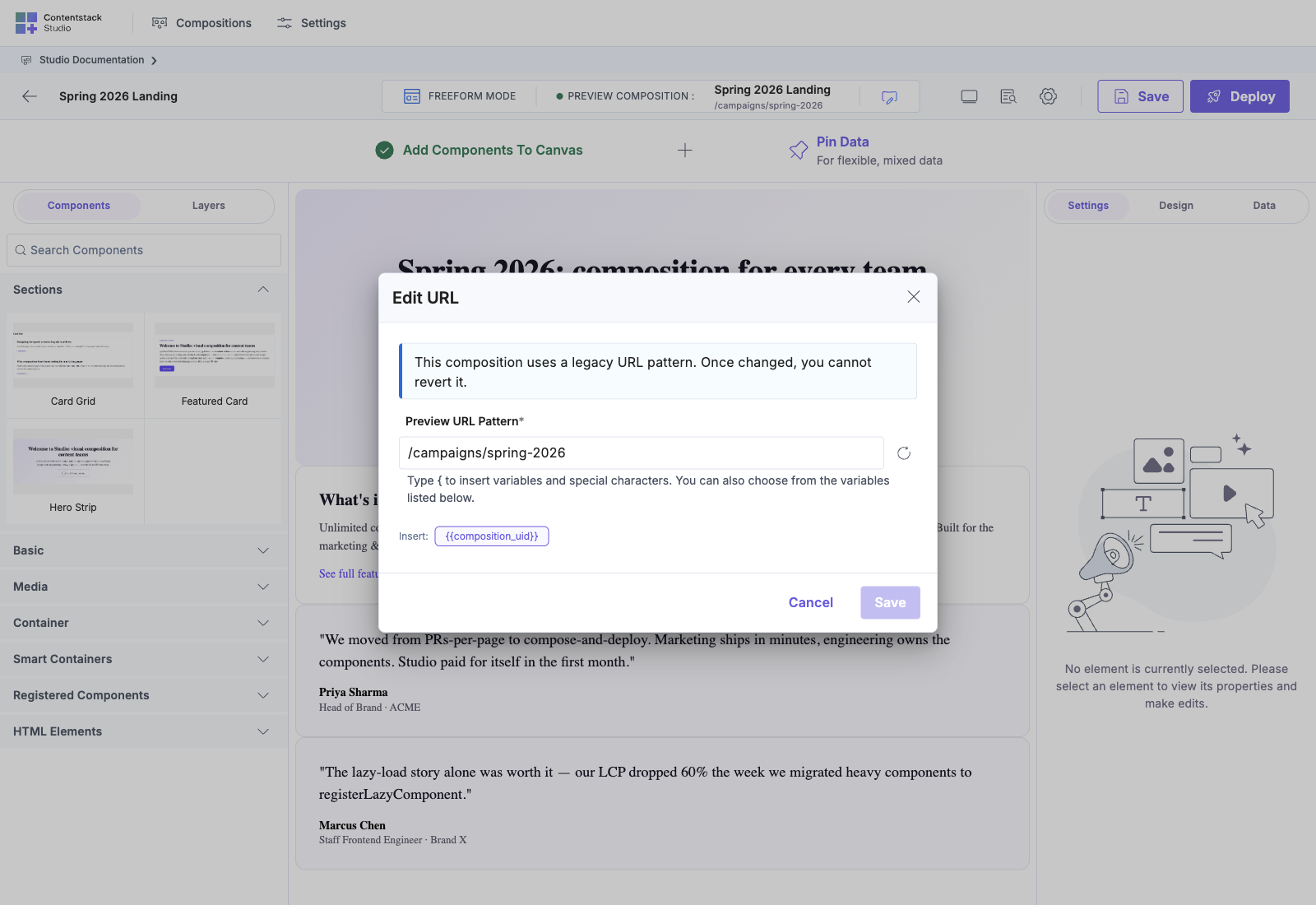
Click the URL editor (pencil icon in the canvas toolbar). The Edit URL modal opens with the default Freeform pattern:
{{composition_uid}}
Replace it with a clean campaign URL:
/campaigns/spring-2026
Save. Studio reloads the iframe at the new path.
Detail: Freeform templates: URL pattern
Step 3: Pin the Campaign Entry
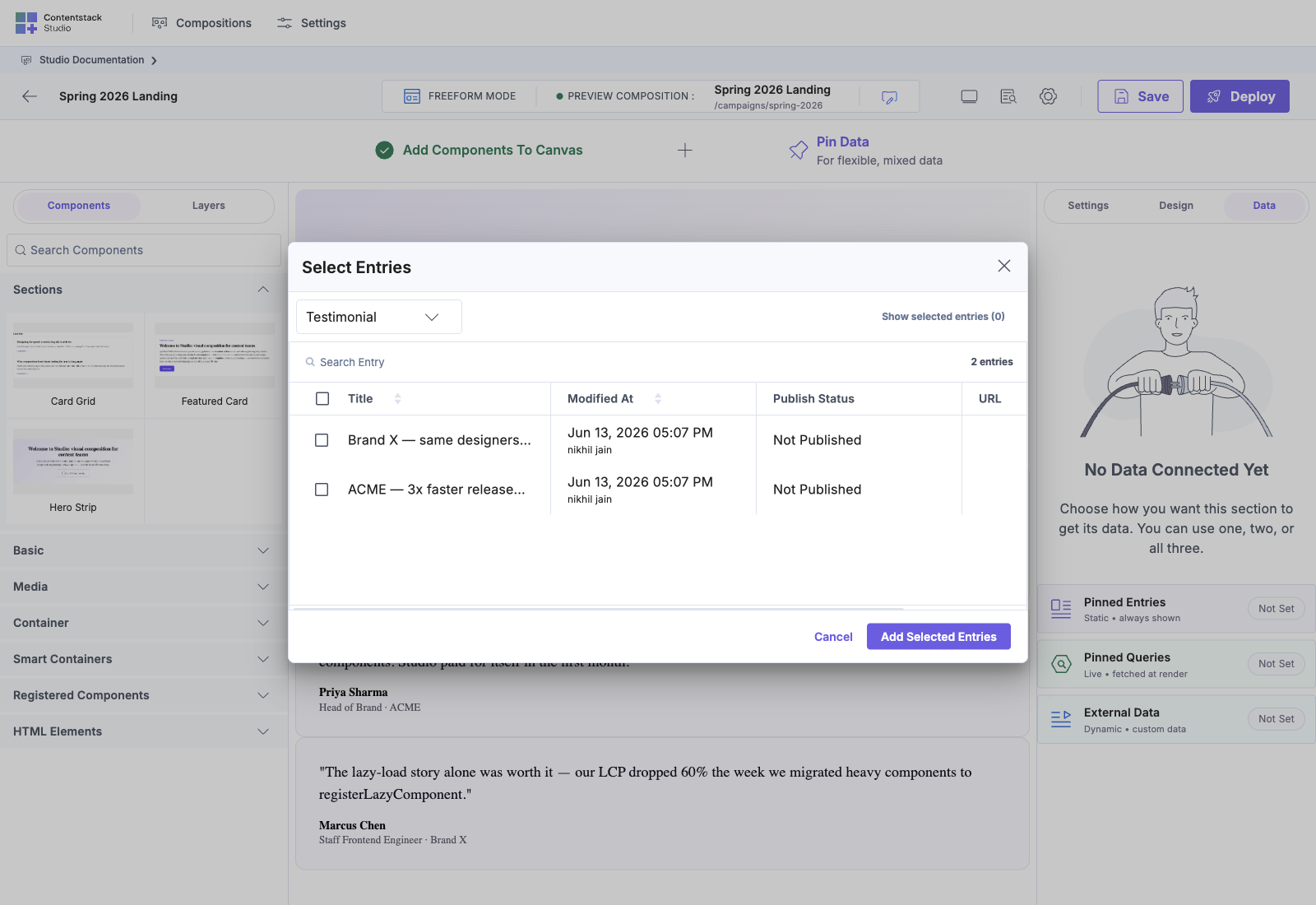
- In the right panel, open the Data tab and find the Additional Entry Data section
- Click Link Entry
- In the search dialog, pick the campaign content type
- Search for “Spring 2026”, then confirm
The pinned entry appears in the list. Studio gives it a binding handle you can use anywhere on the template.
Step 4: Pin the Products Query
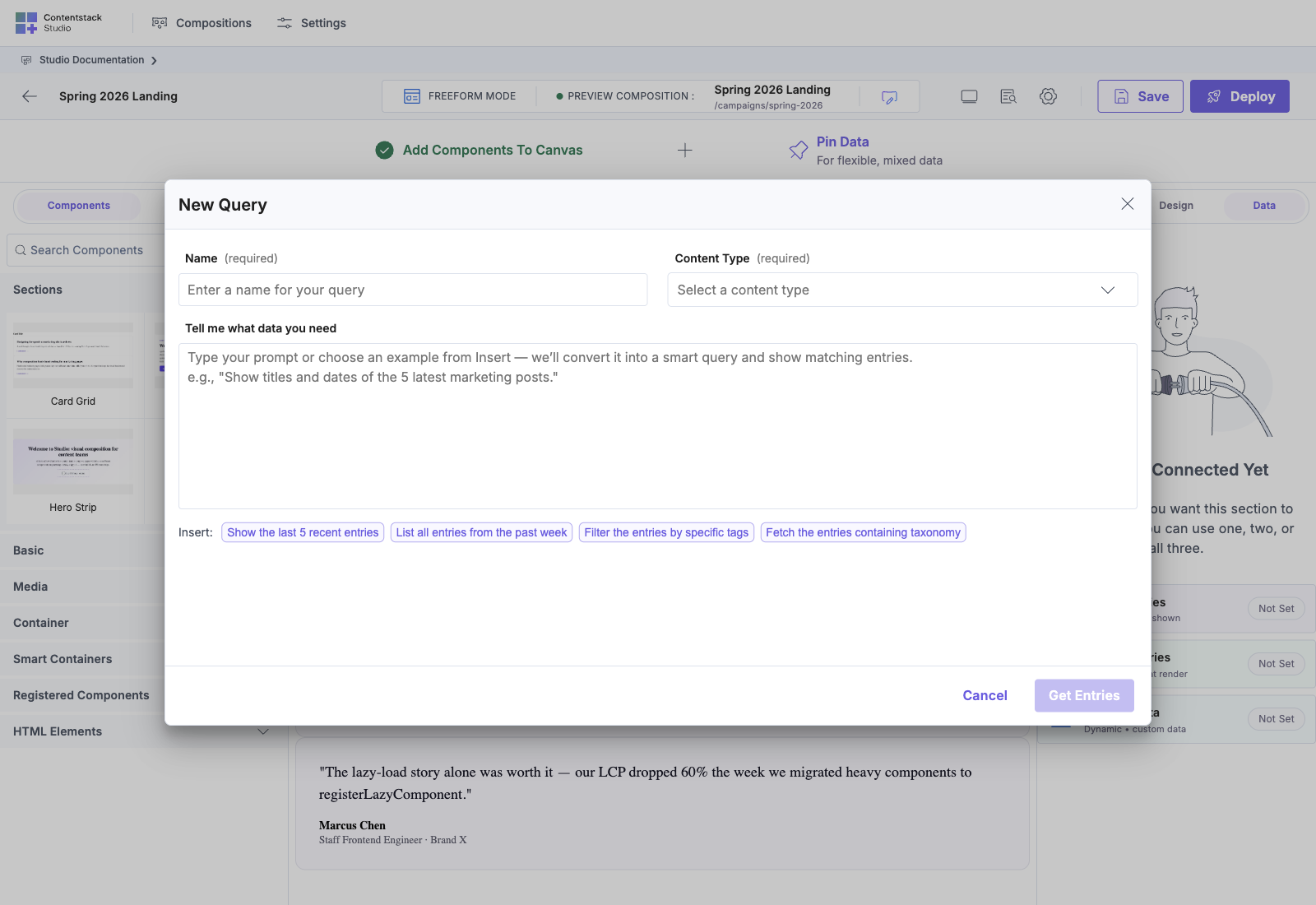
- In the Data tab, find the Pinned Queries section
- Click Create Query
- Configure:
- Content type: product
- Filter: featured = true
- Order by: price ascending
- Limit: 3
- Save the pin
The query result is now bindable from any Repeater on the template.
Step 5: Add a Hero Section Bound to the Pinned Campaign
If you already have a landing_hero section (built in the overrides recipe), drop it. Otherwise build one inline:
- Drop a Box at the root and style it as a hero
- Inside:
- Heading, bind text to Pinned Entry → Spring 2026 → headline
- Text, bind to Pinned Entry → Spring 2026 → subhead
- Image, bind src to Pinned Entry → Spring 2026 → hero_image
- Button, bind href to Pinned Entry → Spring 2026 → primary_cta
Studio’s data picker shows pinned entries alongside template and other data sources.
Step 6: Add the Products Grid Bound to the Pinned Query
Below the hero:
- Drop a Heading, text: “Featured products”
- Drop a Box with a grid layout
- Inside the Box, drop a Repeater
- Bind the Repeater’s source to the Featured Products pinned query
- Inside the Repeater, drop a Box (the card frame), and inside that:
- Image, bind to repeater.image (picker root: Repeater Data)
- Heading, bind to repeater.name
- Text, bind to repeater.price (your component can format it)
- Button, bind href to repeater.url
The Repeater iterates the query result: repeater.* (Repeater Data) refers to the current iteration item (a product entry). The SDK marks these as RepeaterBindingValue, distinct from template-level bindings.
Alternative: if you have a product_card section (built in the card-grid recipe) anchored on a product-shaped Global Field, drop it inside the Repeater instead. Studio scope-root matches it against the iteration item.
Step 7: Save and View
Save the composition.
Open http://localhost:3000/campaigns/spring-2026 in your browser.
You should see:
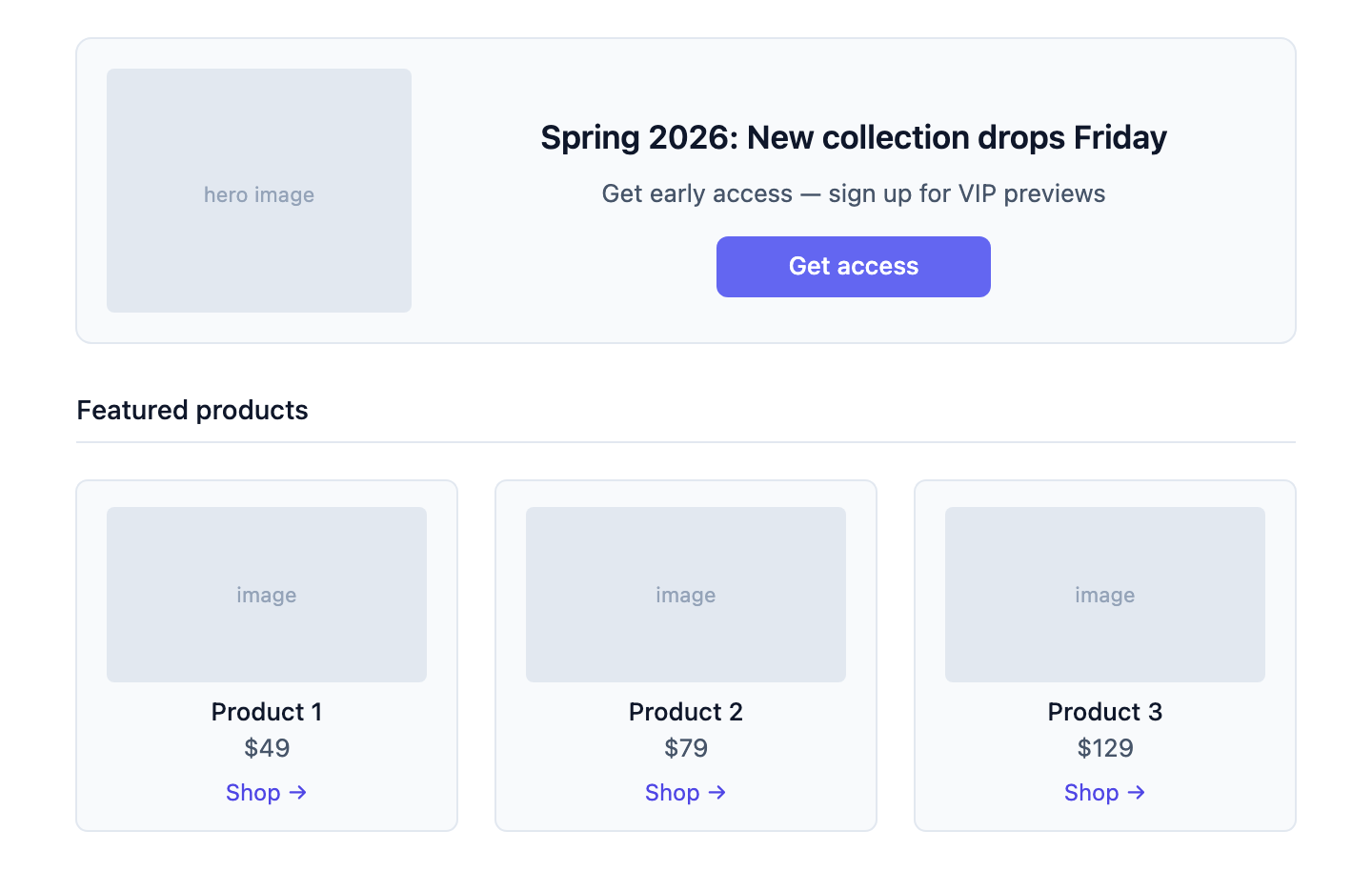
The hero is bound to the campaign entry. The grid auto-refreshes whenever the underlying products query result changes. Publish a new featured product and it shows up here on next render.
What This Gives You
- No new content type needed. You didn’t model “campaign landing template” as a CT. You composed it from existing entries.
- The query stays live. Marketing publishes a new featured product, and it appears on this template automatically.
- One section can serve many templates. The card layout you built here works on any other Freeform or Connected template that pins products.
- Per-template branding. This template can use one hero design. The next campaign uses a completely different layout (both Freeform, no shared CT constraint).
Common Patterns
One pinned entry for template metadata + N pinned queries for content. A campaign template pins the campaign entry (title, headline, theme image), plus queries for featured items, top stories, related links.
Multiple pinned entries assembled into one template. Pin a hero entry, a testimonial entry, and a CTA entry. Compose them into a single template where each section binds to its own pinned entry.
A “compare” template with two pinned entries side by side. Pin two products. Build a side-by-side layout. The same template works for any pair you swap in.
When Freeform is NOT the Right Choice
| Symptom | Better choice |
|---|---|
| Every campaign has the same structure with different content | Build a campaign content type, use a Connected template |
| You’re modeling repeating, content-driven templates | Connected template |
| The template is content-driven enough to deserve a CT | Connected template |
| You’d be making the same Freeform composition over and over | Connected template |
Freeform is for genuinely one-off templates. If you find yourself copying a Freeform composition to make a similar one, that’s a signal. Make a content type instead.
See Also
- Freeform overview
- Pinned Entries
- Pinned Queries
- Card grid with slots: reuse the product grid pattern in Connected templates too